
Book a credit sale at the counter
In short
On Sales, pick the customer under Booking sale to, choose Credit, add each item with its quantity and amount, then tap Add to credit. The total joins their balance.
On this page
To book a credit sale, open Sales, choose the customer under Booking sale to, set Sale type to Credit, add each item with its Quantity and Amount, and tap Add to credit. The total is added to that customer's balance straight away, and a customer who has turned on alerts gets a notification with the amount and their new balance.
The same screen rings up cash sales, so it is the one you keep open at the counter.
Book a credit sale on the Sales screen
- Open Sales. It starts on Walk-in and Cash, ready for the next customer in the queue.
- Tap the name under Booking sale to (or press / on a keyboard) and search for the customer by name or phone.
- Under Sale type, tap Credit. The panel changes to New credit entry.
- Add the first line: type the item in Item / description (for example "Chai x2"), set the Quantity, enter the Amount, then tap Add or press Enter.
- Add the rest of the basket the same way. Use − and + to change a quantity and × to remove a line; the Total updates as you go.
- Tap Add to credit. A message confirms "Credit booked to" the customer with the amount, and the till goes back to Walk-in and Cash for the next sale.
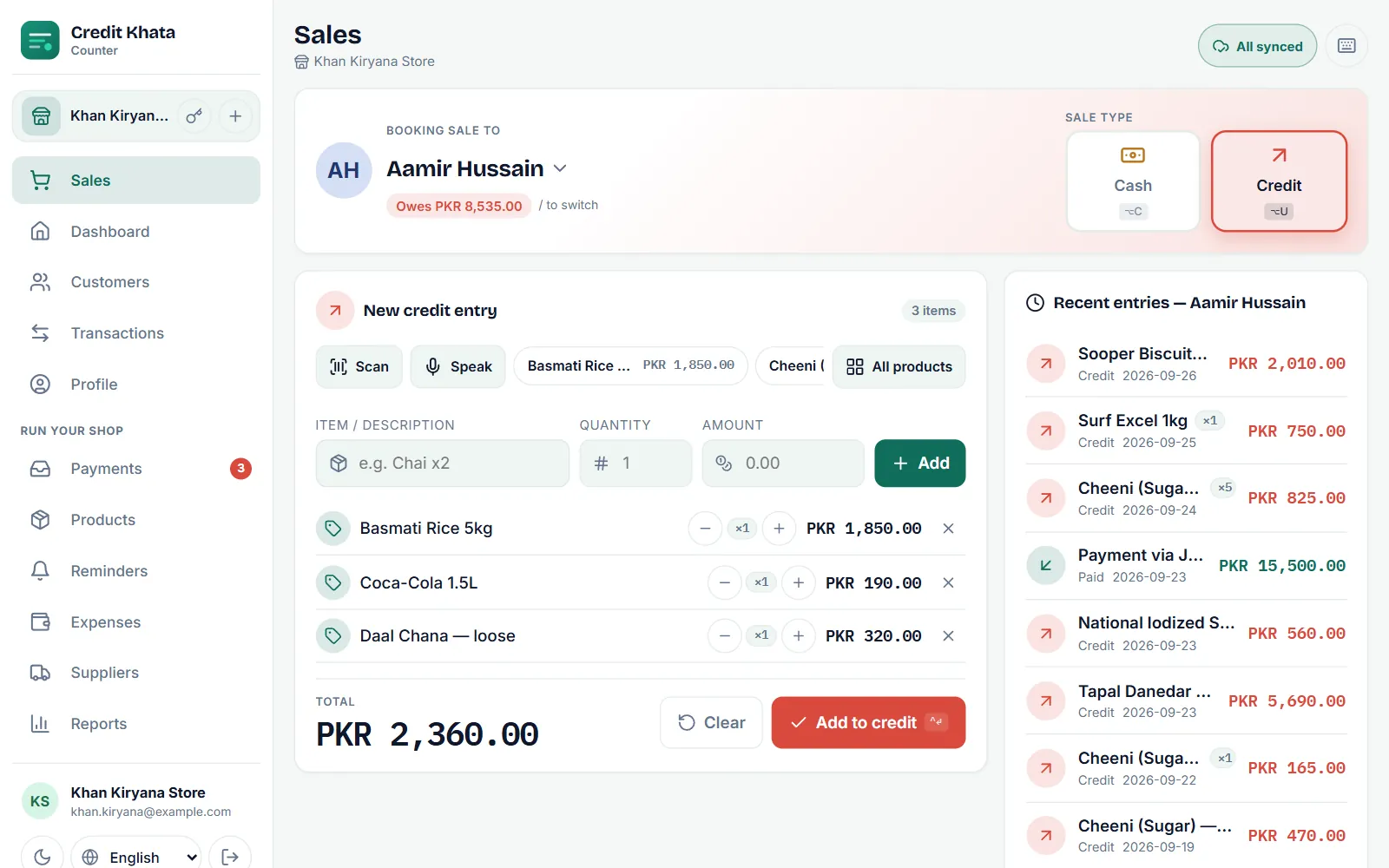
The box at the top shows what the customer already owes, and Recent entries on the right lists their last purchases and payments, so you can answer "how much do I owe?" before you save.
Faster ways to add items
- Product chips and All products: once you have added products, tap one to drop it into the basket at its price.
- Scan: read a product barcode with the camera.
- Speak: say the item and price and it arrives as a line for you to check. The button appears when your browser or phone supports speech input.
Selling from your product list also takes the items off your stock count. See Add products, track stock and see what is running low.
Book credit from the customer's page
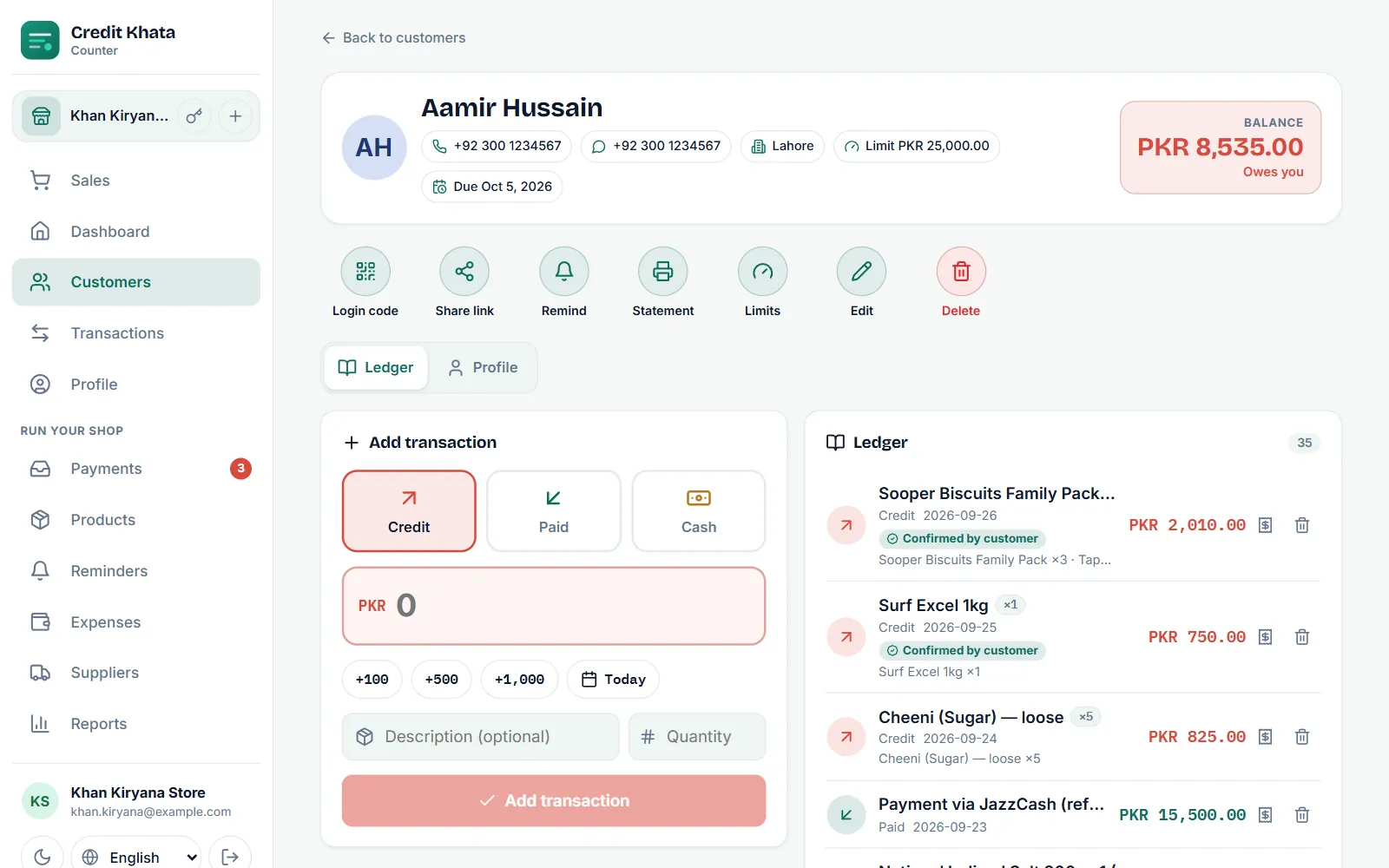
You can also write an entry straight into one customer's account, which is handy for a single amount or an older purchase:
- Open Customers and tap the customer.
- Under Add transaction, choose Credit.
- Type the amount, or tap +100, +500 or +1,000 to build it up.
- Tap the date chip (it shows Today) if the goods were taken on another day.
- Add a Description (optional) and Quantity, then tap Add transaction.
When the customer is near their limit
If the customer has a credit limit and this sale would take them past it, the counter stops and asks first. An owner or manager can choose Book anyway; a cashier cannot go past a limit. Limits and due dates are explained in Set a credit limit and a due date for a customer.
When today's transaction limit is reached
The Free and Pro plans each allow a set number of transactions a day for the whole business (Business has no daily limit). When the day's count is used up, the counter shows "Today's limit reached" and new credit and cash sales wait until the count starts again at midnight in your shop's time zone, or until you upgrade. A payment from a customer is never refused, and sales saved offline before the limit was reached still sync.
Credit, Paid and Cash: what each one does
| Type | Use it for | Effect on the balance |
|---|---|---|
| Credit | Goods taken now, paid later | Adds to what the customer owes |
| Paid | Money the customer gives you | Reduces what they owe |
| Cash | A sale paid on the spot | No change; it is recorded as a cash sale |
To record money coming in, see Record a payment received from a customer.
In the Android app
Tap Sales in the bottom bar, pick the customer, and add lines the same way, then tap Add to credit. On a customer's page the New entry button offers Credit, Paid and Cash. Entries you save without signal show Pending and sync on their own once you are back online.
Frequently asked questions
Can I give credit to a walk-in customer?
No. Credit needs a named customer, because the amount has to sit on someone's account. Walk-in sales can only be cash; add the person as a customer first.
Can I record a credit sale for an earlier date?
Yes. Open the customer's page, choose Credit under Add transaction and tap the date chip (it shows Today) to pick the day the goods were taken.
What happens if the internet is down?
A sale rung up on the Sales screen, or in the Android app, is saved on the device and marked Pending. It uploads by itself, exactly once, when the connection returns.
How do I correct a wrong entry?
An owner or manager taps Void entry on it, in the customer's ledger or in Transactions, then books it again with the right amount. A voided entry stops counting but stays on the account crossed out, and can be put back within 30 days. Entries are not edited in place, so the history stays clear.
Was this article helpful?
Need a hand?
Send us what you see on screen — a screenshot helps — and we will walk you through it.