
Print or share a customer's account statement
In short
Open the customer, tap Statement, pick the period and tap Open statement. Then use Print / Save as PDF to print it or keep a PDF you can send on WhatsApp.
On this page
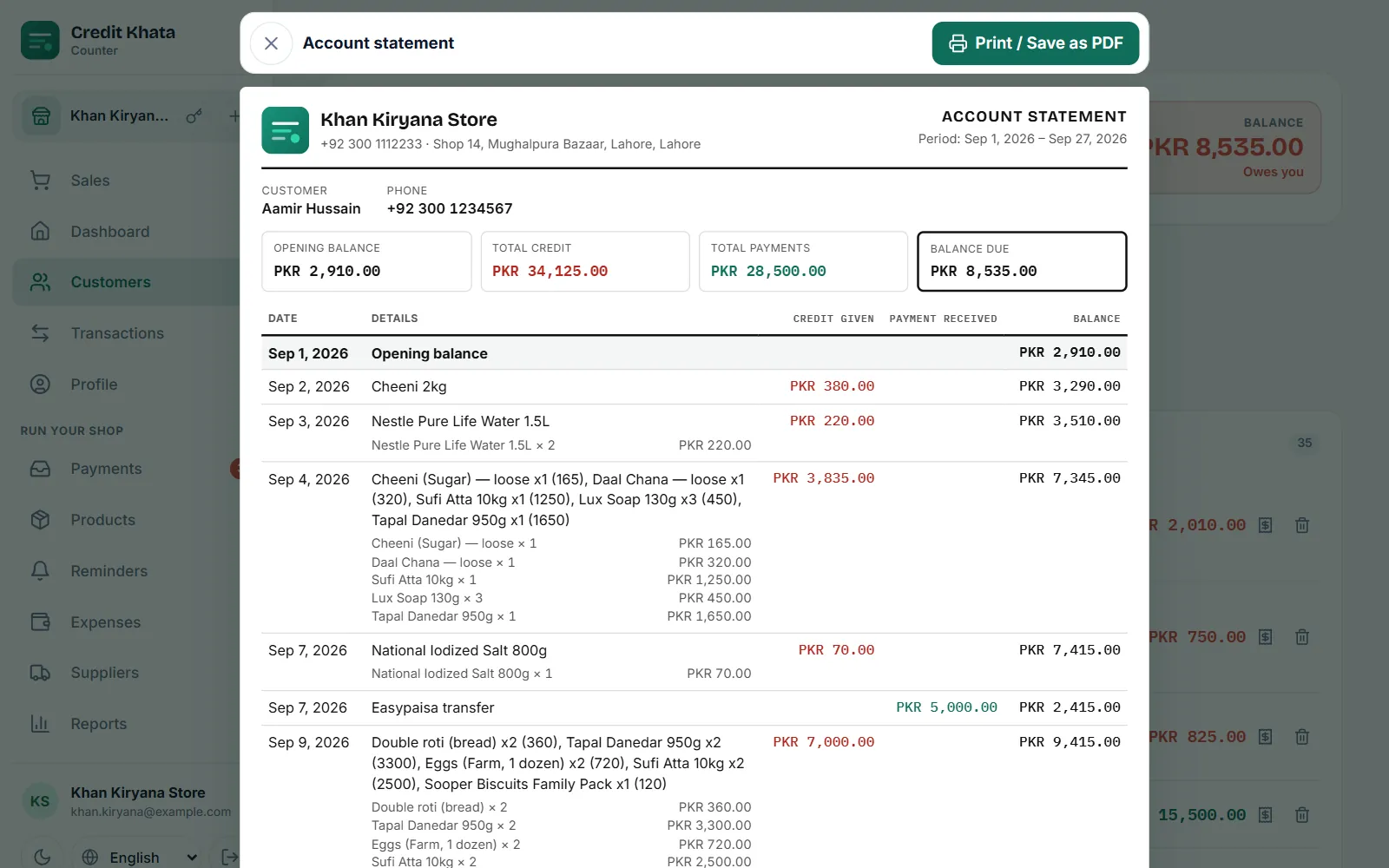
To make a statement, open the customer's page, tap Statement, choose a period such as This month or All time, and tap Open statement. The statement opens on screen with your shop's name and details, the opening balance, every credit and payment with a running balance, and the balance due. Tap Print / Save as PDF to print it or save it as a PDF you can send on WhatsApp.
A statement is the fastest way to settle "how did it get to this much?", because every line behind the total is on one page.
Make a statement in the counter app
- Open Customers and tap the customer.
- Tap Statement in the row of buttons. The sheet Print a statement opens: "Pick the period. The statement opens here, ready to print or save as PDF."
- Choose This month, Last month, Last 3 months, All time, or Pick dates and set From and To.
- Tap Open statement.
- Check it, then tap Print / Save as PDF.
What the statement shows
| Part | What it contains |
|---|---|
| Header | Your shop name, phone and address, "Account statement" and the period |
| Customer | Name and phone |
| Totals | Opening balance, Total credit, Total payments and Balance due (or In credit if the shop owes them) |
| Lines | Date, Details with each item and quantity, Credit given, Payment received and Balance |
| Footer | Closing balance and the date it was generated |
Cash sales recorded against the customer appear as Cash sale and do not change the balance. Any line the customer has disputed is marked Disputed by customer; see When a customer disputes an entry: check, correct and resolve.
The statement is laid out for A4 paper. For a single entry on a small counter printer, use Print receipt on that line instead, which offers 58 mm and 80 mm widths.
Save as PDF and share on WhatsApp
- Tap Print / Save as PDF.
- In the print window, choose Save as PDF (the wording depends on your browser or phone) as the printer, and save.
- Open WhatsApp, go to the customer's chat, attach the PDF as a document, and send.
In the Android app
Open the customer and tap Statement, pick the period, and use the buttons at the bottom: Print / Save as PDF, WhatsApp, or Share PDF to send the file through any app on your phone.
The customer's own statement
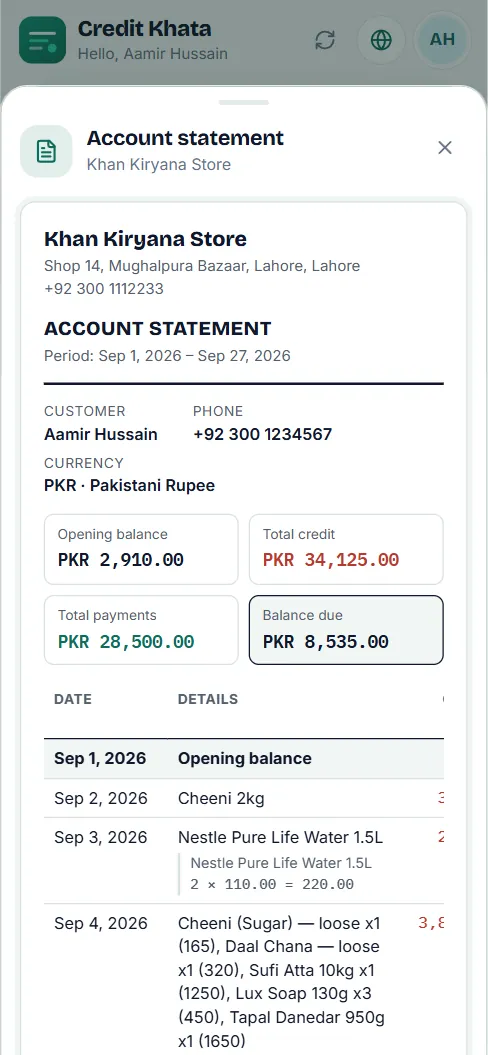
On their khata, the customer taps Statement, chooses This month, Last month, Pick a month, Custom dates or Everything, and taps Open statement. They can print it or save it as a PDF in the same way.
Who can make statements
Statements are for the owner and managers. Everyone at the counter, including cashiers, can print a receipt for a single entry. See Give staff their own logins: manager or cashier.
To look at all customers at once, use Reports: cash book, old dues, sales and profit.
Frequently asked questions
Can a cashier print a statement?
No. Statements are for the owner and managers. Cashiers can print a receipt for a single entry.
How do I send the statement on WhatsApp?
In the counter app, choose Print / Save as PDF and save it as a PDF, then attach the file in WhatsApp. In the Android app, use the WhatsApp or Share PDF button on the statement.
Can the customer get their own statement?
Yes. On their khata they tap Statement, choose a period and open it, ready to print or save as a PDF.
Does the statement show disputed entries?
Yes. Any line the customer has disputed is marked Disputed by customer, so the statement never hides an open question.
Was this article helpful?
Need a hand?
Send us what you see on screen — a screenshot helps — and we will walk you through it.