
For customers: open your khata, check entries and pay the shop
In short
Open the link your shop sent, or enter their login code. You see your balance and every entry; tap an entry to confirm or report it, and tap Pay, then I've paid, to pay them.
On this page
Your shop gives you a way in: a link (usually on WhatsApp) or a short login code. Open the link, or go to the customer page at ck.abdohoo.app/customer-webview, tap Login code and type the code. You then see your balance, the shop's due date and credit limit, and every entry behind the total. Tap an entry to mark it Looks right or Report a problem, and tap Pay to pay the shop by JazzCash, Easypaisa or bank, then I've paid to tell them.
This is the same ledger the shop writes, not a copy, so what you see is what they see. It is always free for customers.
Open your khata
Choose the way that matches what the shop gave you:
- A link: tap it. If you have the Credit Khata app, it opens there; if not, a page offers Open in the app or Continue in browser. Links work once and last 24 hours.
- A login code: open the customer page, tap Login code, type the code (for example K7QH2NPR) and tap Sign in. Codes shown at the counter last only a few minutes, so enter it while you are there.
- A QR code at the counter: tap Scan QR and point your camera at the QR on the shop's screen.
- Email and password: only if the shop set one up for you. Use the Email tab.
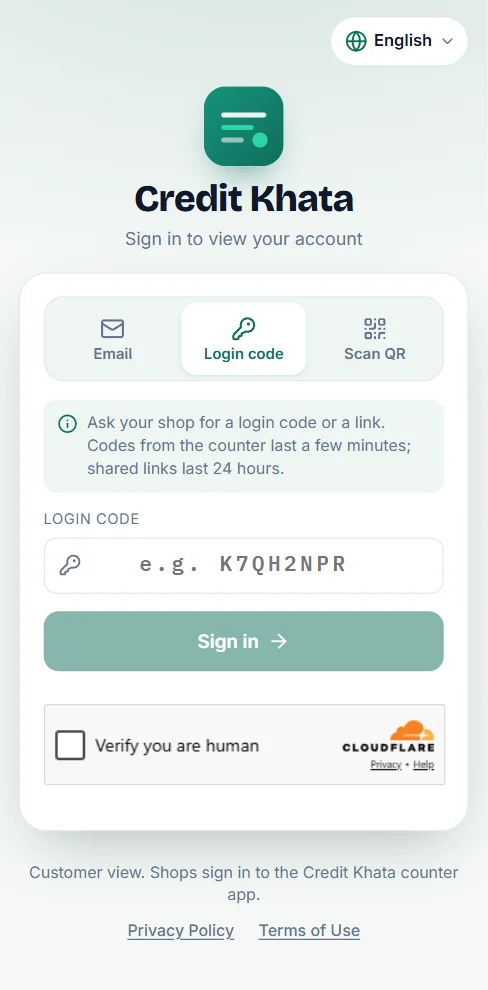
You stay signed in on that phone. To add another shop, open your profile and tap Link another account.
Read your balance
The top card shows Your balance with "You still owe", "The shop owes you" or "All settled", and underneath, how much you have Bought on credit and Paid back.
The shop's card shows your Payment due on date (or Payment overdue if it has passed), your Credit limit and how much is left, and the Pay and Statement buttons. Below that you see My payments, the shop's own details (phone, WhatsApp, directions), and every entry grouped by month. Use the search box, the Credit, Paid and Cash chips, and All months to find one entry.
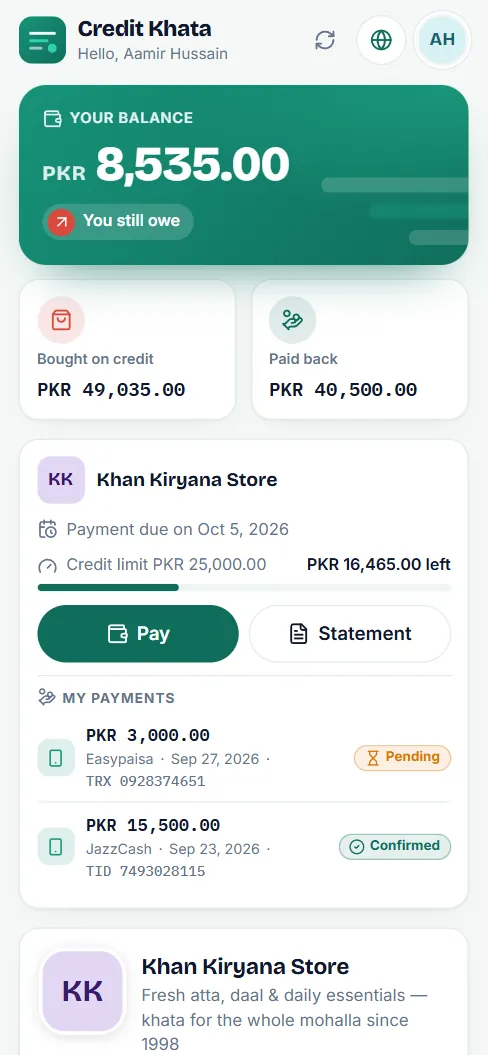
Tap Enable alerts if you want a notification each time the shop adds an entry to your account.
Check an entry, or report a problem
Tap any entry to see what it was for: each item, the quantity and the price. Then:
- Tap Looks right if it is correct. The shop sees that you confirmed it.
- Tap Report a problem if something is wrong, write what is wrong (for example "I took 1 packet, not 2") and tap Send to shop.
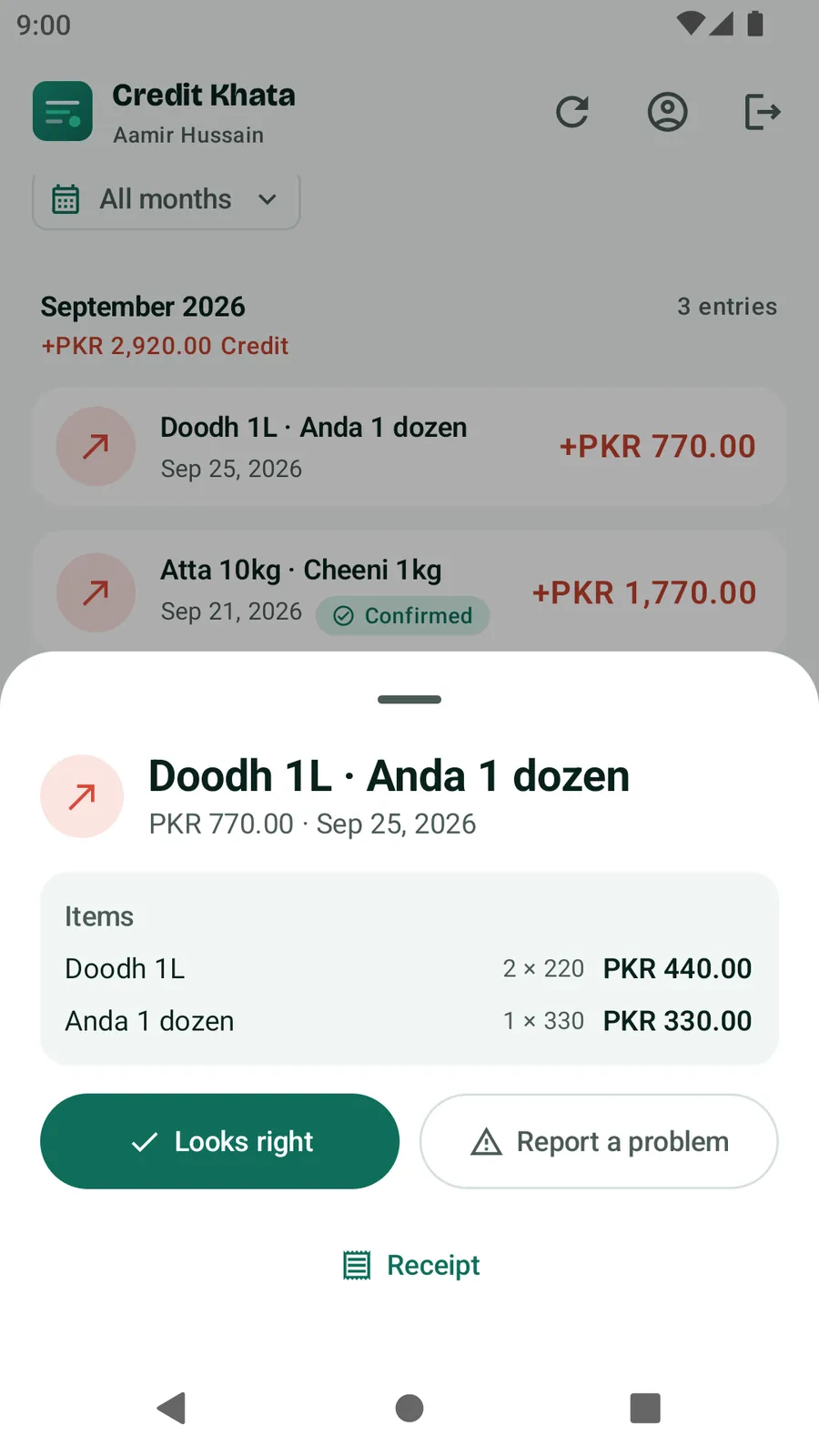
The entry is marked Problem reported until the shop answers. When they do, it changes to Resolved and their reply appears under it as "Shop's reply". A report does not change your balance by itself; the shop corrects its ledger if it agrees. Entries older than a year cannot be reported in the app. Receipt opens a printable receipt for that entry.
Pay the shop
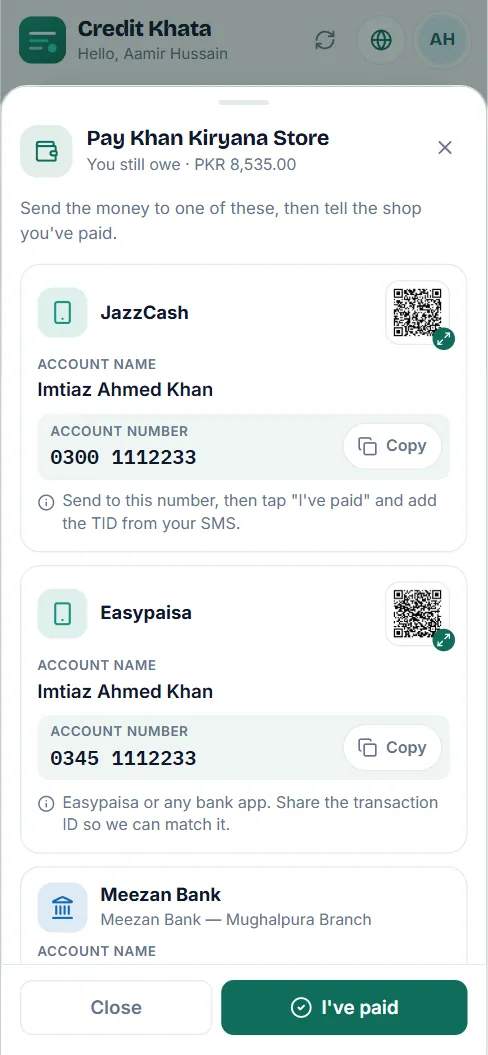
- Tap Pay. You see the shop's payment details, such as JazzCash, Easypaisa, Raast or a bank account, each with the account name, the number, a Copy button and sometimes a QR code.
- Pay in your own wallet or banking app, the way you normally do.
- Come back and tap I've paid.
- Enter the Amount and How did you pay?. Adding the Transaction ID from your SMS and a Screenshot (JPG or PNG, up to 5 MB) helps the shop find it. Add a Note for the shop if needed.
- Tap Send to shop.
The payment appears under My payments as Pending. When the shop confirms it, it becomes Confirmed and your balance goes down. If they cannot find it, it shows Not accepted with the shop's reason. The money goes straight to the shop; Credit Khata never handles it. If the shop has not added payment details, pay them the usual way and let them know.
Get a statement
Tap Statement, choose This month, Last month, Pick a month, Custom dates or Everything, then Open statement. Print it, or choose Save as PDF to keep a copy. See Print or share a customer's account statement.
Language, other shops and privacy
- Change the language with the globe button at the top; see Change the app language (Urdu, Arabic, Hindi and more).
- A shop sees only its own customers. Deleting your sign-in removes your access, but the shop keeps its own record of what you owe, like a paper register. See Download your data, secure your account or delete it.
Frequently asked questions
Do I need to install an app or pay anything?
No. Your khata opens in any phone browser, and reading your own account is always free. The Credit Khata Android app is optional.
My code does not work.
Codes shown at the counter last about 5 minutes and links last 24 hours, and each works only once. Ask the shop for a new code or link.
I paid but my balance has not changed.
After you tap I've paid, the shop checks its account and confirms. Your balance changes when they do. Until then the payment shows as Pending under My payments.
Can I see my khatas with several shops?
Yes. Use Link another account and enter each shop's code. Your accounts are shown together with a combined balance.
I forgot my password.
Password reset is for shop accounts. Ask your shop for a new sign-in code or link instead.
Was this article helpful?
Need a hand?
Send us what you see on screen — a screenshot helps — and we will walk you through it.