
Change the app language (Urdu, Arabic, Hindi and more)
In short
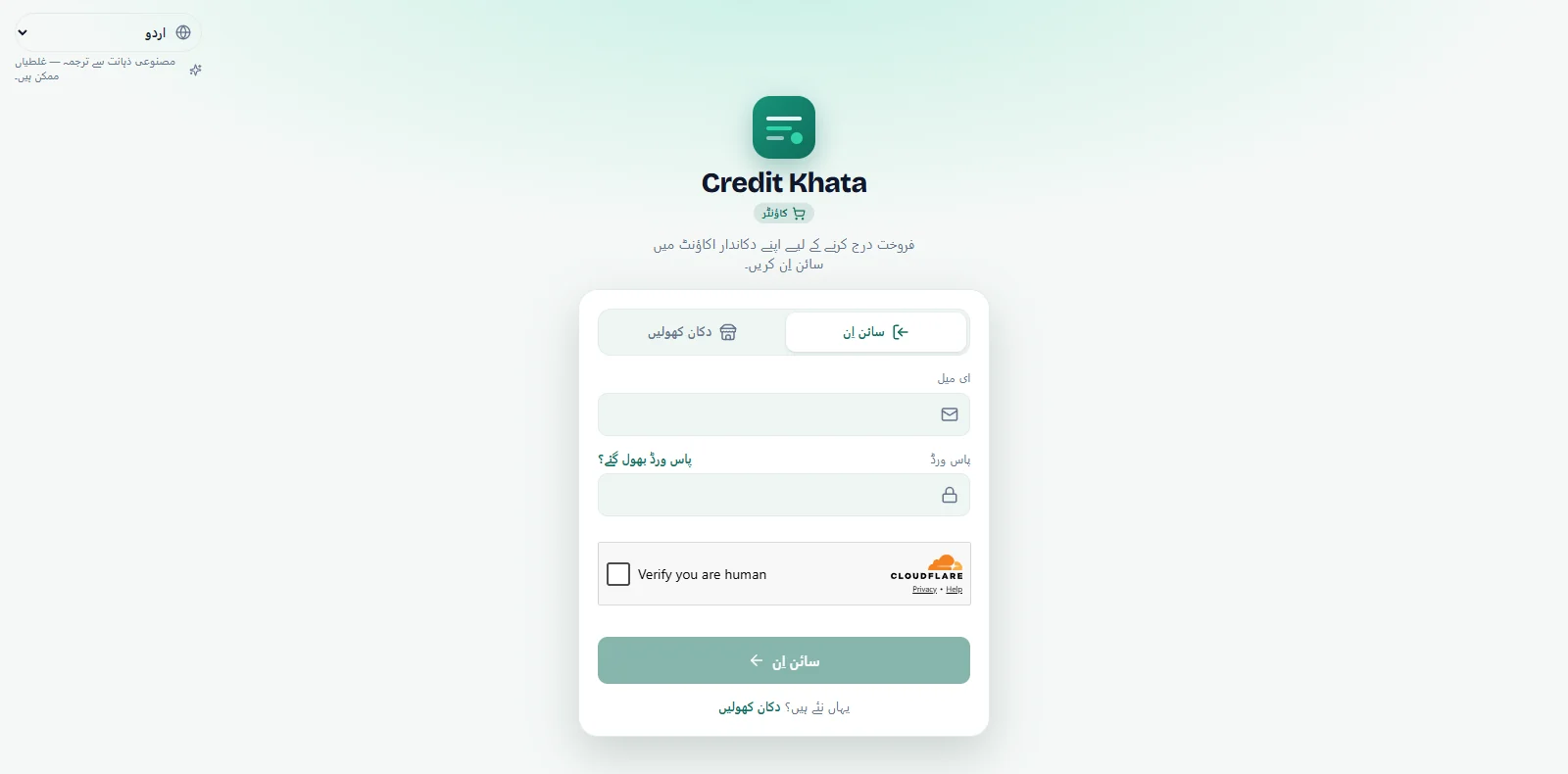
Pick a language from the globe menu on the sign-in screen, in the counter's sidebar or in Profile → Language. Fourteen languages; Urdu, Arabic and Persian read right to left.
On this page
Credit Khata works in fourteen languages, each written in its own script. To change it, use the globe menu: on the counter app's sign-in screen it is at the top corner, and once you are signed in it sits at the bottom of the sidebar (on a phone, under Profile → Language). Customers change it with the globe button at the top of their khata, and in the Android app it is under Profile → Language. Urdu, Arabic and Persian switch the whole layout to right to left.
The language is chosen per person and per device, so the shopkeeper, the cashier and each customer can each read the app in the language they are comfortable with.
The languages
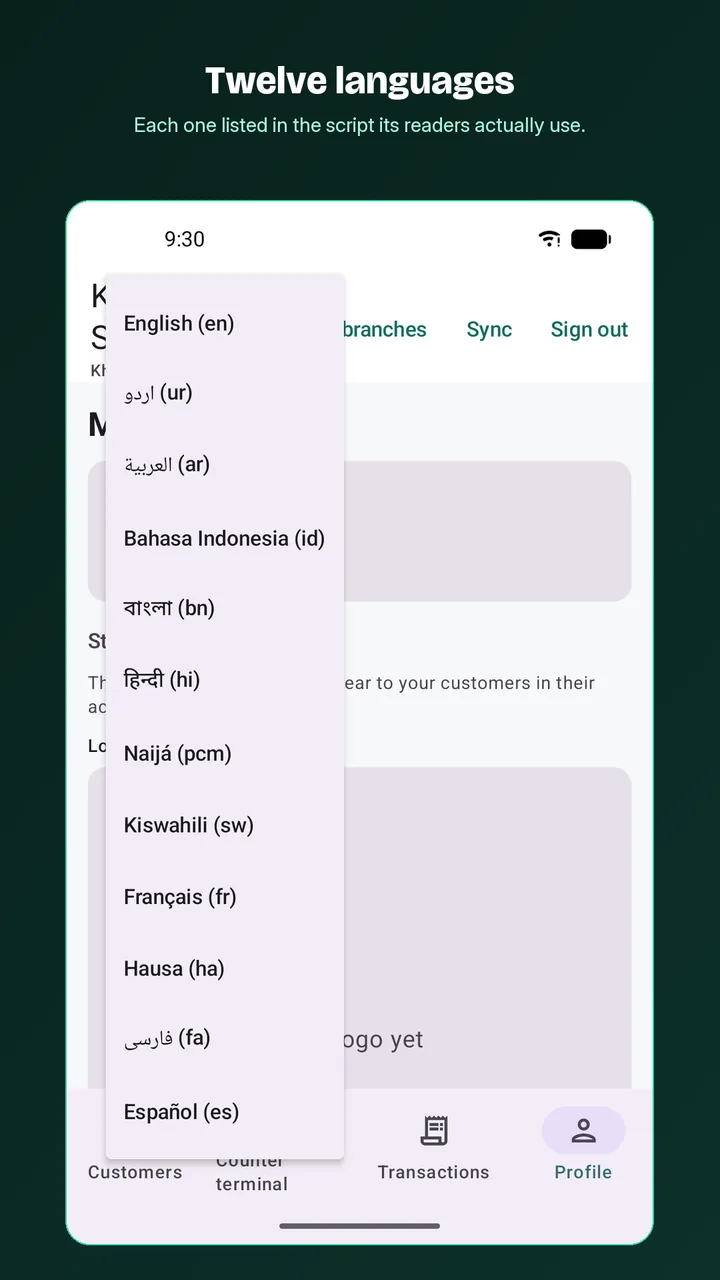
| Language | Shown in the menu as | Direction |
|---|---|---|
| English | English | Left to right |
| Urdu | اردو | Right to left |
| Arabic | العربية | Right to left |
| Indonesian | Bahasa Indonesia | Left to right |
| Bengali | বাংলা | Left to right |
| Hindi | हिन्दी | Left to right |
| Nigerian Pidgin | Naijá | Left to right |
| Swahili | Kiswahili | Left to right |
| French | Français | Left to right |
| Hausa | Hausa | Left to right |
| Persian | فارسی | Right to left |
| Spanish | Español | Left to right |
| Chinese (Simplified) | 简体中文 | Left to right |
| Russian | Русский | Left to right |
Change the language in the counter app
- Before signing in: open the menu at the top corner of the sign-in screen and pick your language.
- On a computer: at the bottom of the sidebar, open the globe menu (it shows the current language, for example English) and pick another.
- On a phone: tap Profile in the bottom bar, then Language.
The change takes effect straight away, and the counter remembers it on that device, even offline.
Change it in the Android app
On the sign-in screen, tap the language chip at the top. Once signed in, open Profile and tap Language under App. Shopkeepers and customers use the same setting.
Change it as a customer
On your khata, tap the globe button at the top and pick a language. You can also find Language in My profile. See For customers: open your khata, check entries and pay the shop.
Right-to-left languages
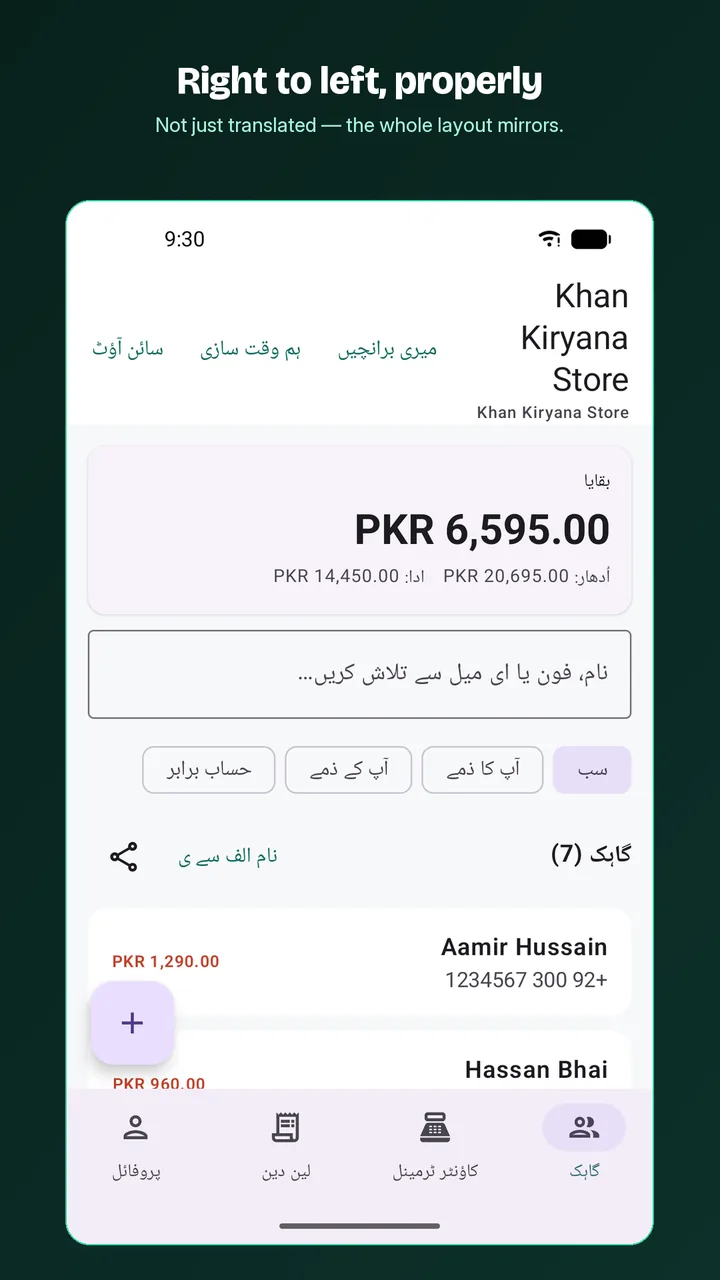
In Urdu, Arabic and Persian the layout itself turns around: menus, buttons, lists and the order of columns read from right to left, as in the Play Store screenshot below. It is not only the words that are translated.
Good to know
- When you pick a language other than English, a small note under the menu says "Translated by AI — there may be mistakes." If you spot a wrong word, write to support@abdohoo.app.
- Reminder messages are not translated automatically. The standard reminder is in English; write your own message in Urdu or Roman Urdu under Reminders → Settings → Message. See Send payment reminders on WhatsApp or SMS.
- Changing your own language never changes what your customers or staff see.
A shared counter with several people
The counter app remembers the language on the device, not on the account. If two people take turns on the same counter computer and prefer different languages, the second person simply picks theirs from the globe menu after signing in; the other person's phone or computer is not affected. Staff with their own logins on their own phones each keep their own choice. To give staff separate logins, see Give staff their own logins: manager or cashier.
Frequently asked questions
Which languages are available?
English, Urdu, Arabic, Bahasa Indonesia, Bengali, Hindi, Nigerian Pidgin (Naijá), Swahili, French, Hausa, Persian, Spanish, Simplified Chinese and Russian.
If I switch to Urdu, do my customers see Urdu too?
No. Language is chosen per person. You can work in Urdu while a customer reads the same account in English, or the other way round.
Are reminder messages sent in my language?
The standard reminder is in English. To send reminders in Urdu or Roman Urdu, write your own wording under Reminders → Settings → Message.
I found a wrong translation. What should I do?
The translations were made with AI and may contain mistakes. Tell us at support@abdohoo.app and we will fix them.
Was this article helpful?
Need a hand?
Send us what you see on screen — a screenshot helps — and we will walk you through it.