
Add products, track stock and see what is running low
In short
Open Products → Add product, enter a name, price and stock, and set Warn when stock falls to. Sales from the list reduce stock; the Low stock filter shows what to reorder.
On this page
Open Products and tap Add product. Give it a Product name and Price, choose how it is Sold by (pieces, kg, litres, dozen and so on), add its Barcode if it has one, then enter Stock now and Warn when stock falls to. From then on, every sale of that product at the counter takes it off the count, and the Low stock filter lists everything at or below its warning level.
Products are optional. The counter works with typed items too; the product list simply makes selling faster and keeps count for you.
Add a product
- Open Products from the Run your shop menu (on a phone, from Home).
- Tap Add product.
- Enter the Product name and Price, and choose the unit under Sold by: pcs, kg, g, L, ml, m, dozen, pack or box.
- Everything else opens from its own chip, so tap only what you need:
- Barcode: type it or tap Scan barcode to read it with the camera.
- Item code: your own short code for items without a barcode.
- Cost price: what you pay for it. It is used for the profit estimate and only the owner and managers see it.
- Category, such as "Atta & Rice" or "Beverages". Categories become filter chips.
- To count stock, tap Stock and enter Stock now (how many you have) and Warn when stock falls to (your reorder level).
- Leave For sale on, and tap Save.
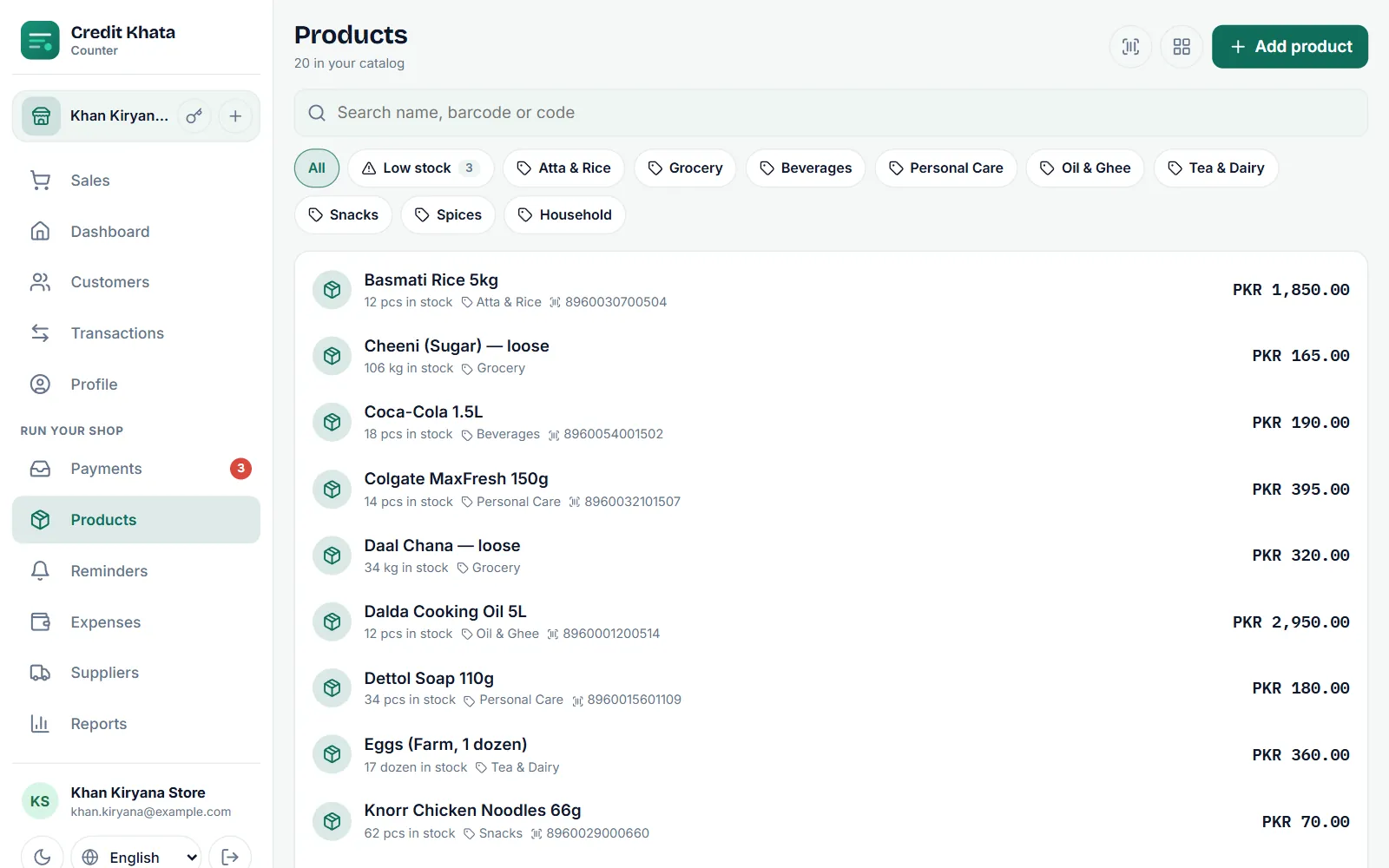
Sell from your products
On the Sales screen, tap a product chip, open All products, or tap Scan and point the camera at the barcode. The product drops into the basket at its price; change the quantity with − and +. When the sale is saved, as cash or as credit, the quantity comes off the stock count. See Book a credit sale at the counter.
If you scan a code that is not in your list, the counter says "Not in your catalog" and an owner or manager can add it on the spot.
See what is running low
Tap the Low stock chip on Products. The number on the chip is how many products are at or below their Warn when stock falls to level, and each one is marked Low stock.
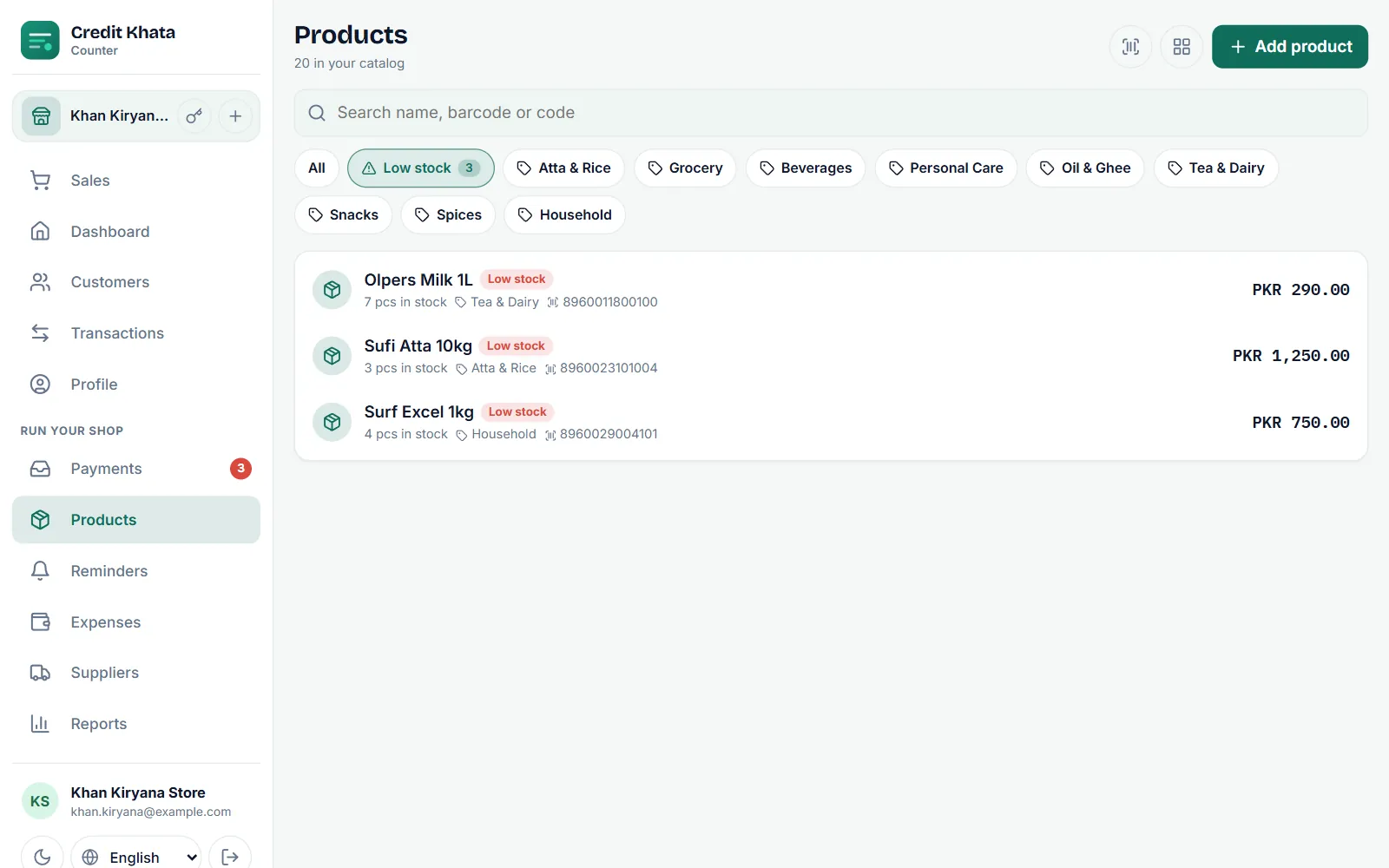
Check this list before you visit your supplier. If you buy stock on credit, you can record that in Suppliers so you know what you owe them too.
Restock or correct the count
Tap a product to open it:
- Restock asks "How many came in?". Enter the new quantity and an optional Note (optional), such as the supplier's bill number.
- Correct stock takes a Change (+ or −). Use minus for breakage or loss and plus for items found during a count.
- Stock history lists every movement: Sold, Restocked, Corrected and Returned, so you can see where the count came from.
Edit changes the price, barcode or anything else; Delete removes the product from your list.
On a phone
The counter app on a phone has the same Products screen, with the barcode scanner and view buttons at the top.
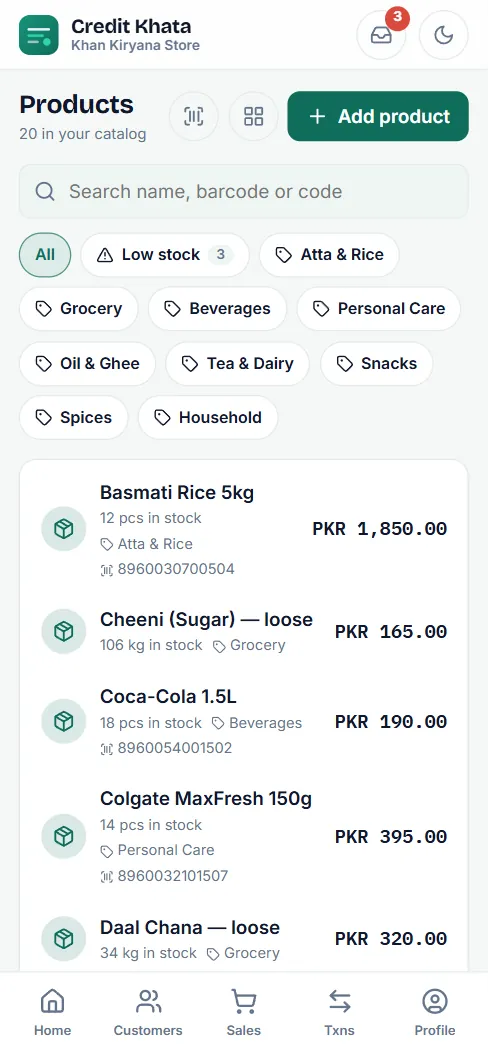
In the Android app, open Home → Your business → Products ("Catalog, prices and stock"). There you can add products, turn on Track stock, set a Low-stock alert at level and record New stock came in.
Who can do what
| Action | Owner | Manager | Cashier |
|---|---|---|---|
| See products and sell them | Yes | Yes | Yes |
| Add, edit or delete products | Yes | Yes | No |
| Restock or correct stock | Yes | Yes | No |
| See cost prices | Yes | Yes | No |
To see your best-selling items and an estimate of profit, open Reports: Reports: cash book, old dues, sales and profit. To give staff their own logins, see Give staff their own logins: manager or cashier.
Frequently asked questions
Do I have to add products to use Credit Khata?
No. You can type any item and amount at the counter. Products just make ringing up faster and let the app count your stock.
Does stock go down when I sell on credit?
Yes. Any sale of a product from your list, cash or credit, takes that quantity off its stock count.
Can I scan barcodes?
Yes. Use Scan on the Sales screen or Scan barcode in Products to read a barcode with the camera. You can also type or paste a barcode into the product search.
Can cashiers add products or change stock?
No. Cashiers can see products and sell them. Adding, editing, restocking and correcting stock is for the owner and managers.
Why do I need a cost price?
It is optional. With cost prices, the Profit report can estimate what you made. Only the owner and managers see cost prices.
Was this article helpful?
Need a hand?
Send us what you see on screen — a screenshot helps — and we will walk you through it.