
Work offline and keep your ledger in sync
In short
Sales rung up without internet are saved on the device, marked Pending, and upload by themselves in order, exactly once, when the connection returns. Check the sync pill.
On this page
Credit Khata is built for counters with patchy signal. When the internet drops, a sale you ring up is saved on the device, marked Pending, and kept in a queue. As soon as the connection is back, the queue uploads itself in order, and each sale is posted exactly once, so a retry can never charge a customer twice. The sync pill on the Sales screen tells you where things stand, from All synced to how many are waiting.
What works offline
| Counter app (browser) | Android app | |
|---|---|---|
| Ring up cash and credit sales | Yes, on the Sales screen | Yes |
| Record payments (Paid) | Needs a connection | Yes |
| Add a new customer | Needs a connection | Yes |
| See customers and balances | Yes, from the last saved copy | Yes, from the phone |
| Payments inbox, reminders, reports, statements | Needs a connection | Needs a connection |
The counter app opens without internet once it has been used online on that device, because it keeps its screens, your language and your customer list. It says "Working from the local cache" while it is offline.
Read the sync pill
At the top right of the Sales screen, a pill shows the queue:
- All synced: everything is on the server.
- Offline · 2 pending: no connection; two sales are waiting on this device.
- 2 to sync or Syncing 2…: the connection is back and the queue is uploading.
- Not saved: 1: the server refused a sale; see below.
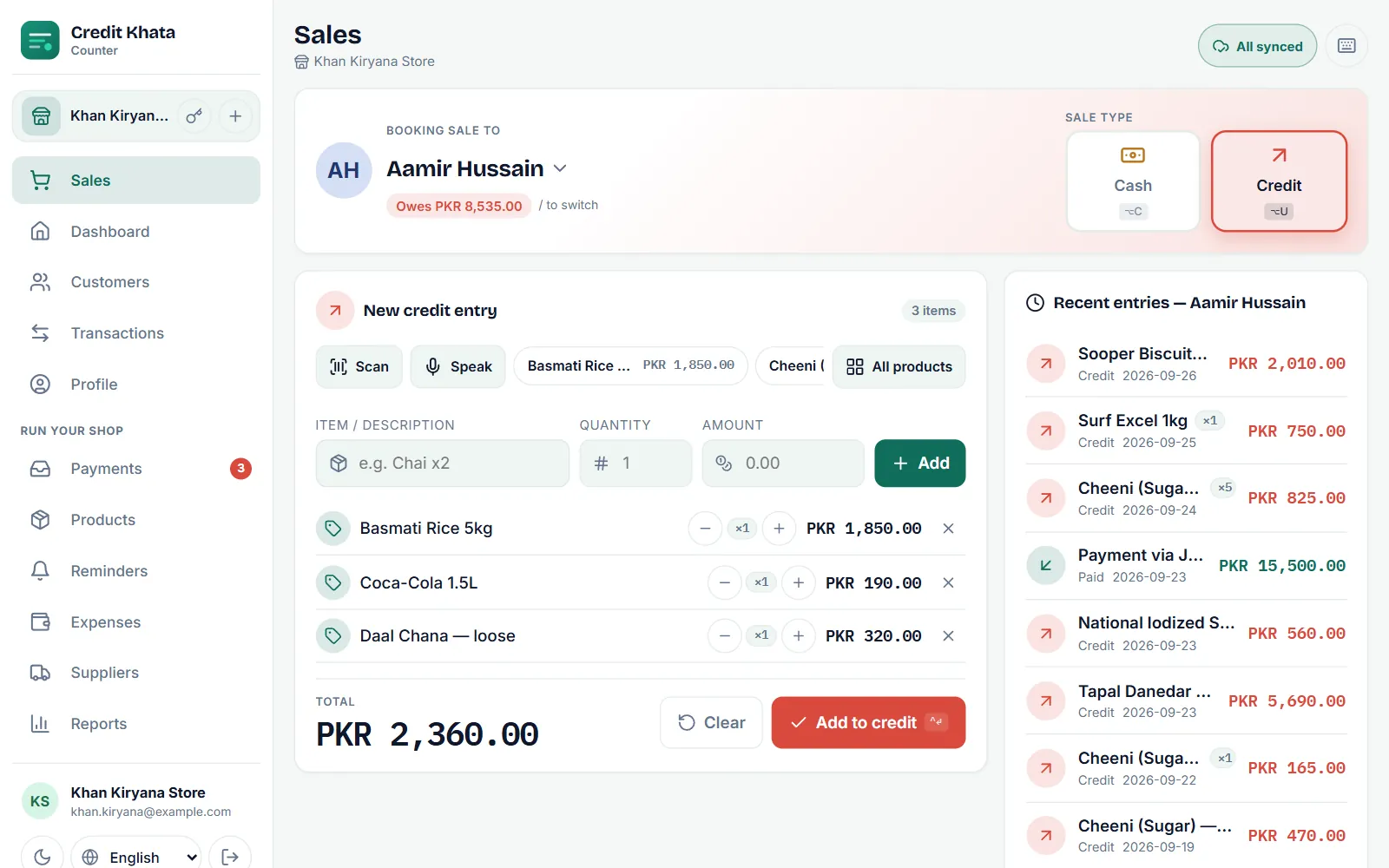
Tap the pill to open Unsynced sales, which lists what is Waiting to sync. Sales still in the queue also show Pending and "Will sync when online" in the customer's recent entries.
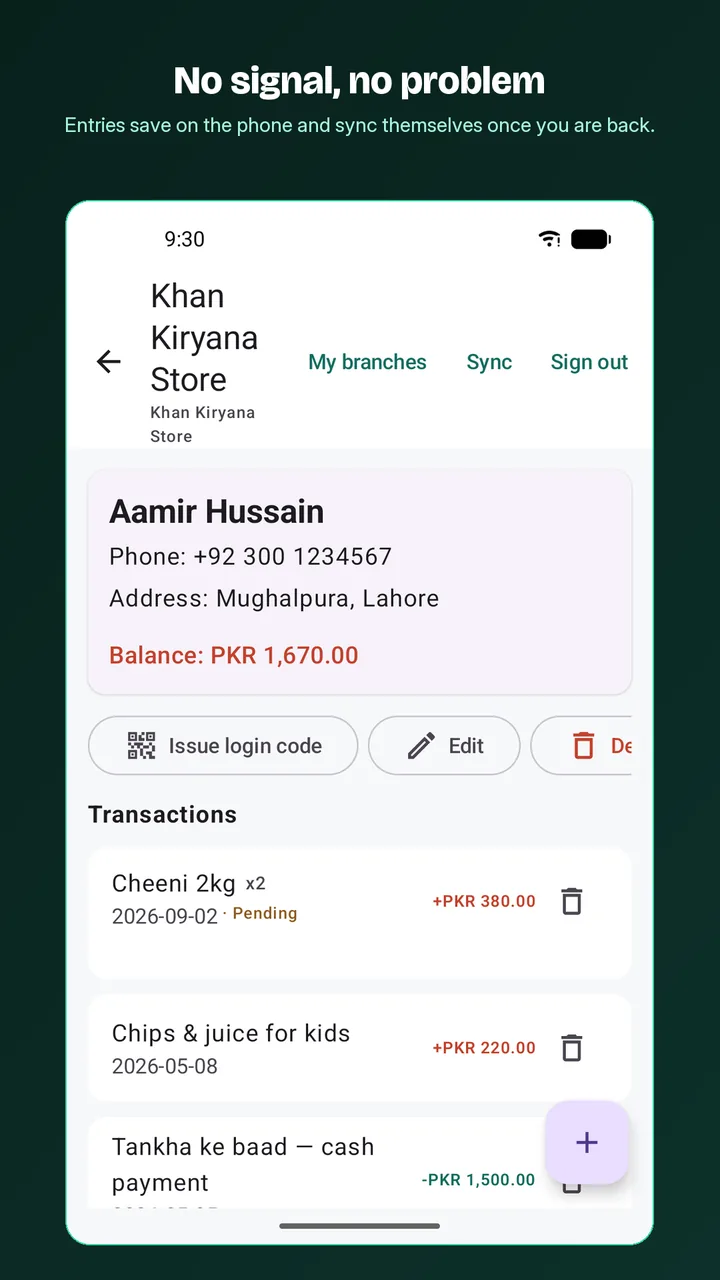
In the Android app, entries saved without signal show Pending on the customer's page, and the refresh button at the top syncs on demand.
When a sale could not be saved
Occasionally the server refuses a queued sale, for example because the customer has since been deleted, or a credit sale would now take them past their limit. The sale is not thrown away. A red bar says a sale "could not be saved. Review it before it is lost", and the pill shows Not saved.
- Tap Review on the bar (or tap the pill).
- Under Could not be saved, read the reason for each sale.
- Fix the cause if you can, then tap Try all again, or tap Discard for a sale you do not want recorded.
The Android app lists these under Needs attention: "The server refused these. Nothing was lost: fix, retry or discard each one."
Before you sign out or switch branch
If someone else signs in on the same terminal while your sales are still queued, they are warned too, because those sales belong to your account.
Tips for a reliable counter
- Open the counter app once a day while online, so its copy of your customers is fresh.
- Install it on the counter computer or phone. Most browsers offer "Install app" or "Add to Home screen" for the counter app, and it then opens like any other app.
- Add new customers when you have signal, or use the Android app, which can add them offline.
- For why this matters, read Why an offline-first ledger matters for small shops.
Related: Book a credit sale at the counter and Record a payment received from a customer.
Frequently asked questions
Can a sale be recorded twice if the connection is flaky?
No. Every queued sale carries a unique key, so a retry, a double tap or a dropped connection cannot post the same sale twice.
What should I do before signing out?
Wait for All synced. Signing out of the counter app with unsynced sales discards them, and the app warns you before it does.
What works offline in the counter app?
The Sales screen, with your cached customer list. Adding customers, entries on a customer's page, payment claims, reminders and reports need a connection.
Does the Android app work offline?
Yes. New customers and all entries, credit, paid and cash, are saved on the phone first and synced in the background when there is signal.
Was this article helpful?
Need a hand?
Send us what you see on screen — a screenshot helps — and we will walk you through it.