
When a customer disputes an entry: check, correct and resolve
In short
Customers can mark any entry Looks right or Report a problem. Disputed entries show on your dashboard; check the note, fix the ledger if needed, then tap Resolve with a reply.
On this page
Every entry on a customer's khata has two buttons on their side: Looks right and Report a problem. When a customer reports a problem, the shop is alerted, the entry is flagged Disputed with the customer's note, and it appears under Customers disputing entries on your dashboard. You check it, correct your ledger if the customer is right, and tap Resolve with a short reply that the customer can read.
A dispute never edits an entry by itself. The ledger stays the shop's record; the dispute is the customer's written question about one line of it.
How the customer confirms or questions an entry
On their khata (in the browser or the Android app) the customer taps an entry to see its items and amounts, then taps:
- Looks right, which marks the entry confirmed. You see a Confirmed by customer chip on that line.
- Report a problem, which asks "What is wrong with this entry?". They must write a short note, then tap Send to shop.
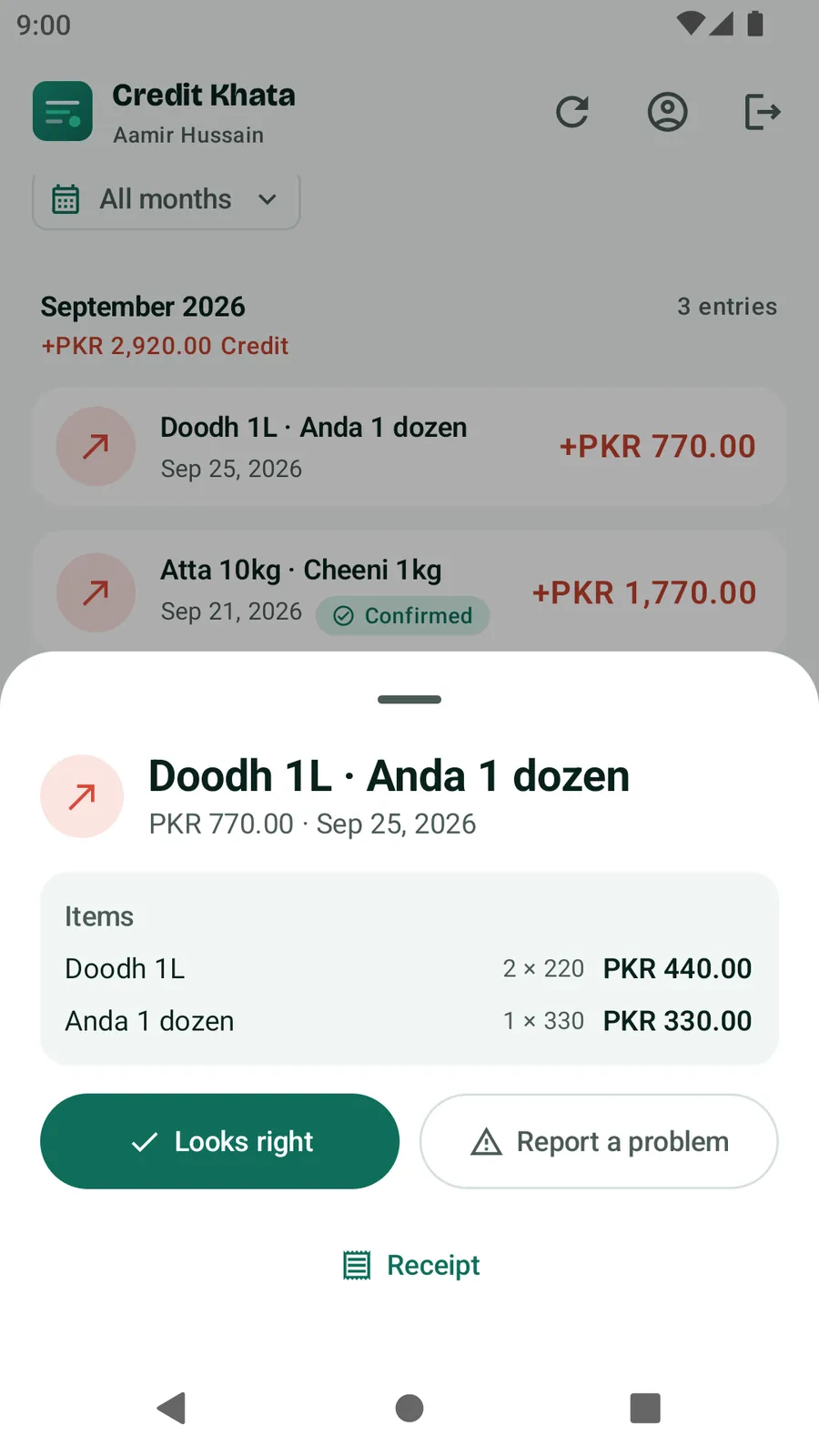
Entries older than a year cannot be confirmed or reported in the app.
Where you see disputes
- Counter app: the Dashboard shows a Customers disputing entries card with a count and each entry, the customer and their note. Tap a customer's name to open their ledger.
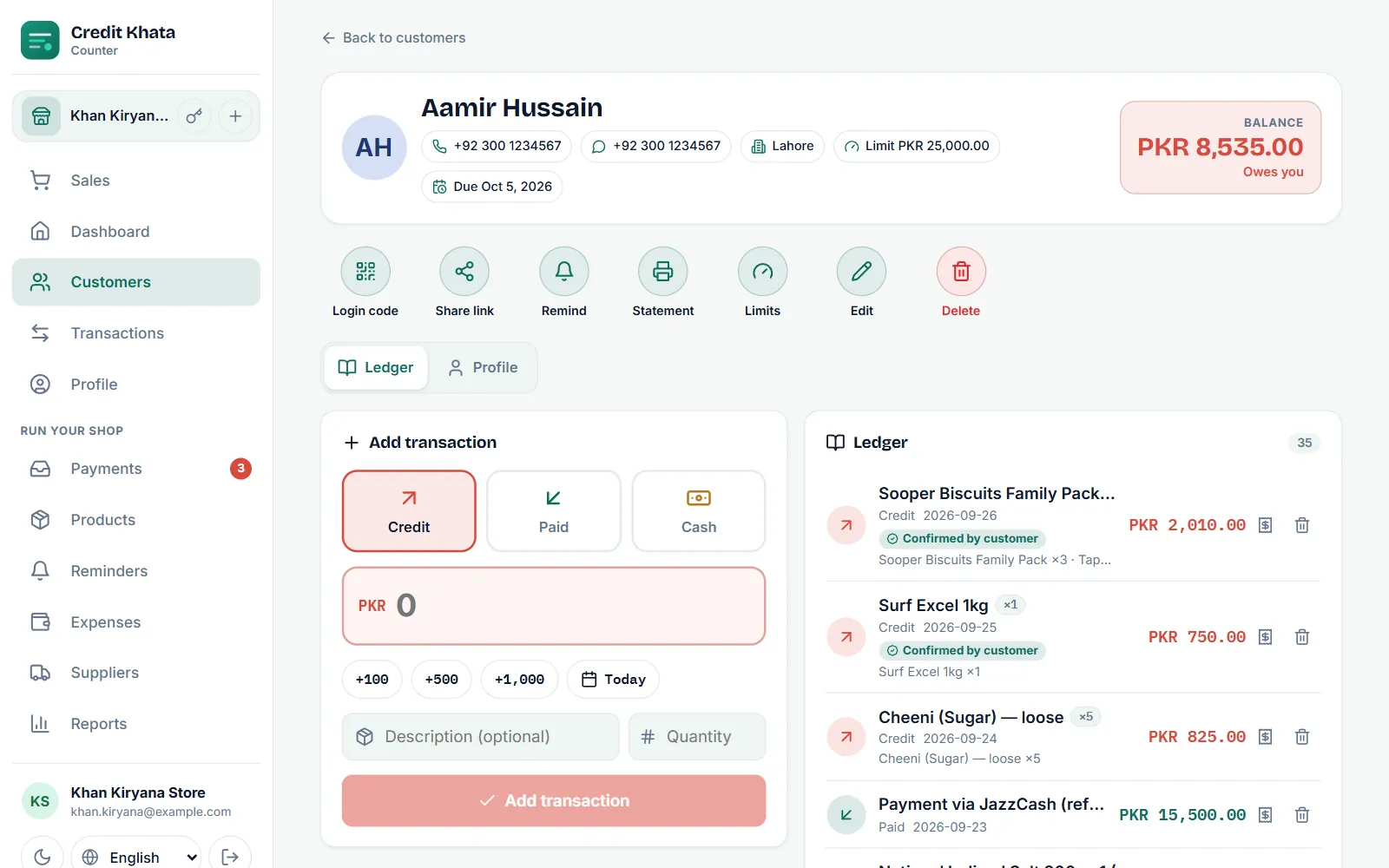
- Customer's ledger: the disputed line carries a Disputed chip and the customer's note in quotes. Confirmed lines show Confirmed by customer.
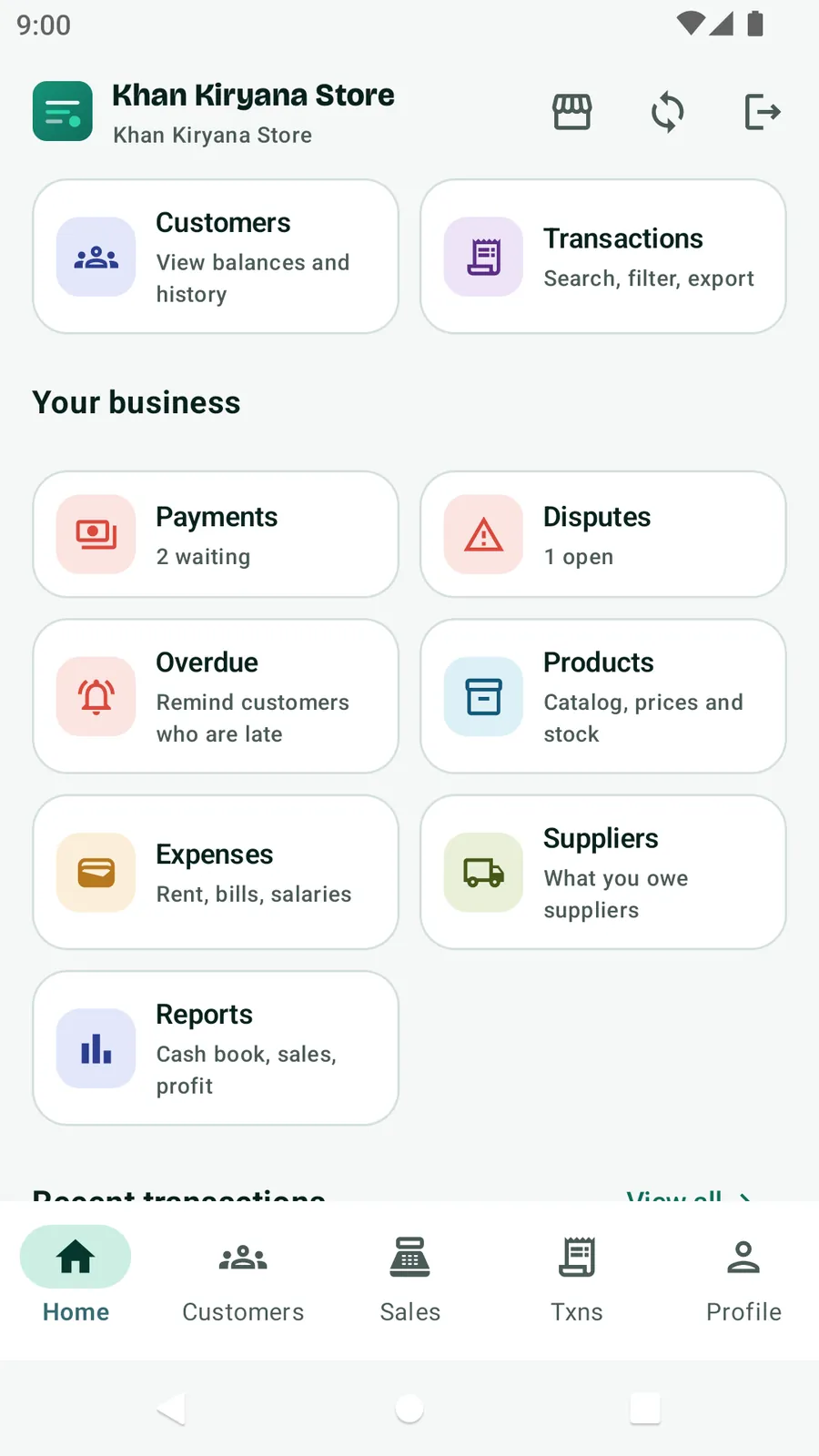
- Android app: Home → Your business → Disputes shows how many are open ("1 open") and lists them.
- Notifications: the shop's devices get an "Entry disputed" alert when push notifications are available.
Check, correct and resolve
- Open the customer's ledger and read the note on the disputed line.
- Check your side: the items and quantities on the entry, your paper slips, a staff member's memory, a payment you may have missed.
- If the customer is right, correct the ledger the way you would in a paper khata:
- Tap Delete entry on the wrong line, then add the correct entry with Add transaction, or
- Add a separate entry that makes up the difference, for example a Paid entry for a payment you forgot to record.
- Tap Resolve on the disputed line.
- In What was done? (optional), write a short reply, for example "Sorry, milk was 1 packet not 2. Corrected." Then tap Resolve.
The line changes to Resolved, and the customer sees your reply under the entry as "Shop's reply". A customer with alerts turned on is told that their report was answered.
Who can do what
| Action | Owner | Manager | Cashier |
|---|---|---|---|
| See the Disputed chip on a customer's ledger | Yes | Yes | Yes |
| See the list of open disputes | Yes | Yes | No |
| Delete an entry | Yes | Yes | No |
| Resolve a dispute | Yes | Yes | No |
In the Android app, open Disputes, tap the entry, add Reply to the customer (optional) and tap Mark resolved.
Printed statements show disputed lines as "Disputed by customer", so a statement never hides an open question. See Print or share a customer's account statement.
Related
- How customers see and question entries: For customers: open your khata, check entries and pay the shop
- Recording a payment that was missed: Record a payment received from a customer
Frequently asked questions
Does a dispute change the customer's balance?
No. A dispute is the customer's note on an entry. The balance changes only if the shop corrects its own ledger by deleting or adding an entry.
Who can resolve a dispute?
The owner and branch managers. Cashiers can see a Disputed chip on a customer's ledger but cannot resolve it or delete entries.
Can a customer dispute an old entry?
Entries older than a year cannot be confirmed or reported in the app. Those are best settled in person.
Will the customer know I have answered?
Yes. The entry shows as Resolved on their khata with your reply, and a customer with alerts turned on is notified.
Was this article helpful?
Need a hand?
Send us what you see on screen — a screenshot helps — and we will walk you through it.