
Confirm a payment a customer says they made
In short
When a customer taps I've paid, the claim waits in Payments. Check your wallet or bank, then tap Confirm payment to add it to their khata, or Reject with a reason.
On this page
When a customer pays you by JazzCash, Easypaisa, Raast or bank and taps I've paid on their khata, the claim appears in Payments with a count on the menu. Check that the money has arrived in your account, then tap Confirm payment: Credit Khata writes the payment on the customer's ledger for you. If the money is not there, tap Reject and give a reason the customer will see.
Nothing moves on the ledger until you confirm. The claim is the customer's word; the ledger stays your record.
Where payment claims appear
- Counter app on a computer: Payments in the Run your shop menu, with a red badge showing how many are waiting.
- Counter app on a phone: a Payments to confirm banner on Home and an inbox icon with a badge at the top of the screen.
- Android app: Home → Your business → Payments, showing how many are waiting.
- Notifications: the shop's devices get a "Payment to confirm" alert where push notifications are available.
Check and confirm a payment
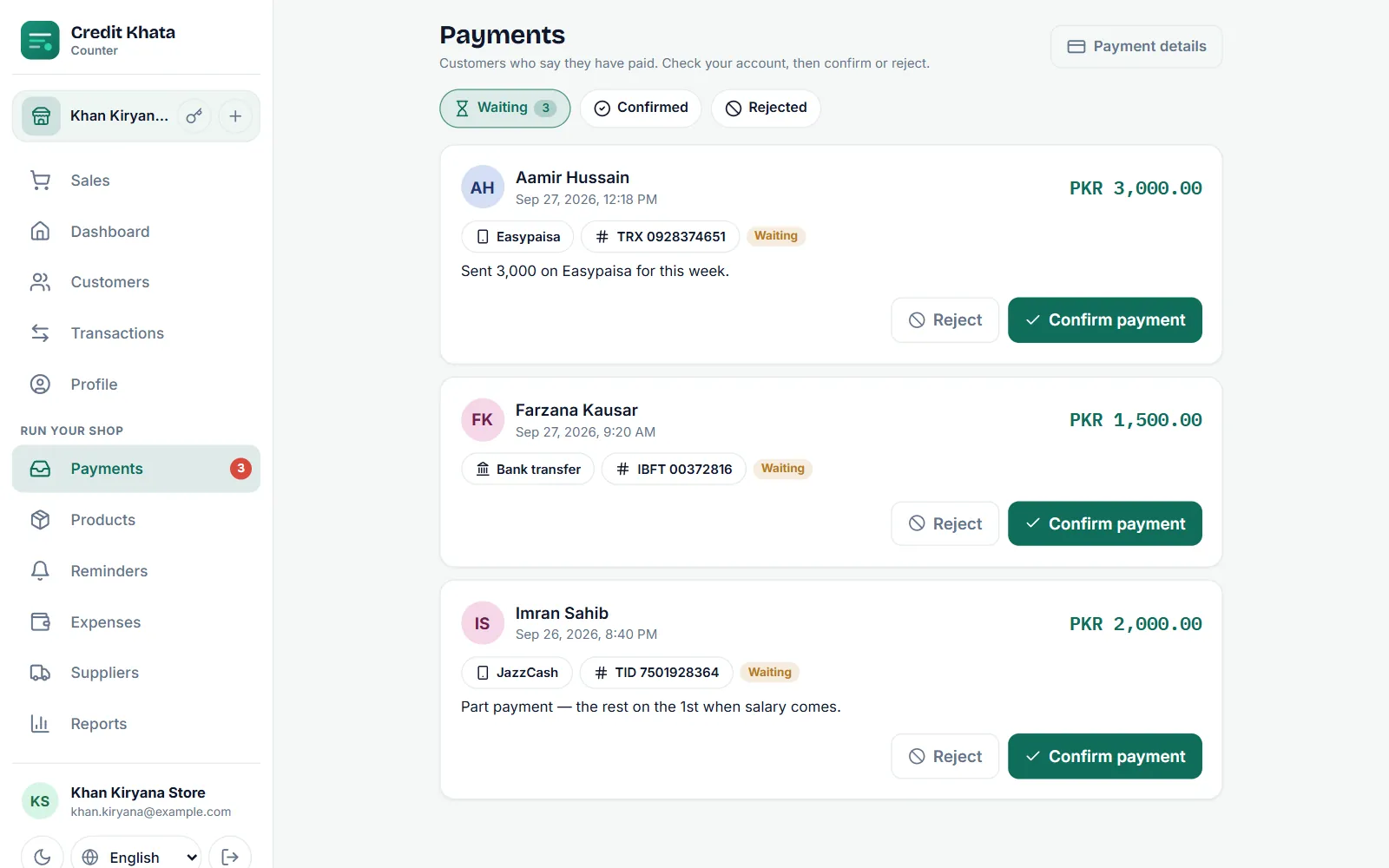
- Open Payments. The Waiting tab lists every open claim.
- Read the card: the customer, when they sent it, the amount, how they paid (for example Easypaisa or Bank transfer), the transaction reference if they gave one, their note and any Payment screenshot.
- Open your wallet or banking app and find the money. Match the amount and the transaction ID (TID or TRX) against your SMS or statement.
- Tap Confirm payment.
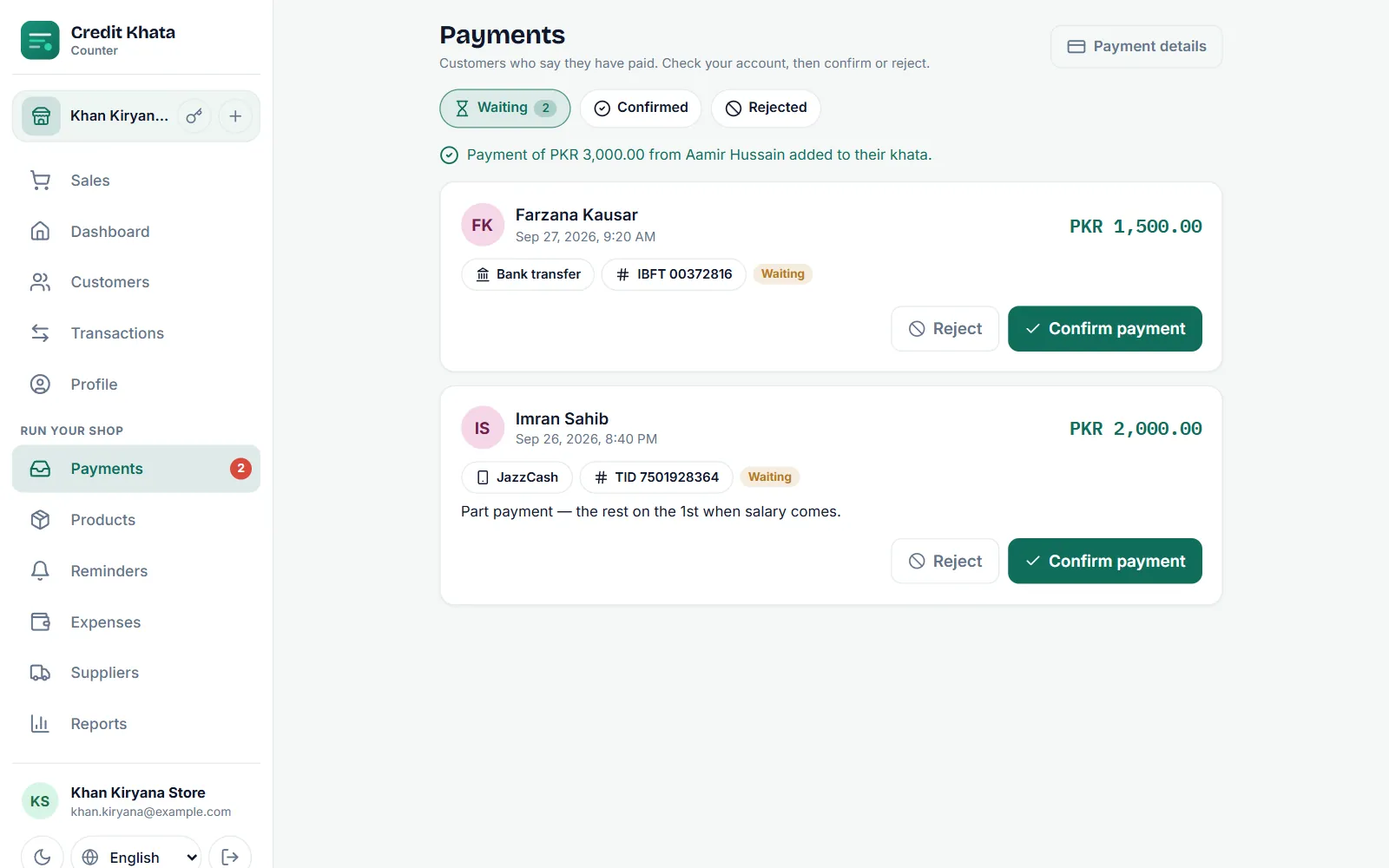
A message confirms that the payment was added to the customer's khata. The ledger line reads like "Payment via JazzCash" with the reference, the claim moves to Confirmed, and the customer sees it as confirmed in their My payments list.
Reject a claim
If you cannot find the money, or the amount is different:
- Tap Reject on the claim.
- Pick a reason, Money not received, Amount does not match or Already recorded, or write your own under "Why? The customer will see this."
- Tap Reject again. A reason is required. The claim moves to Rejected and the customer is told why.
For a partial amount, a good approach is to reject with Amount does not match and ask the customer to send a new claim for the amount that actually arrived, so the ledger records what you really received.
In the Android app
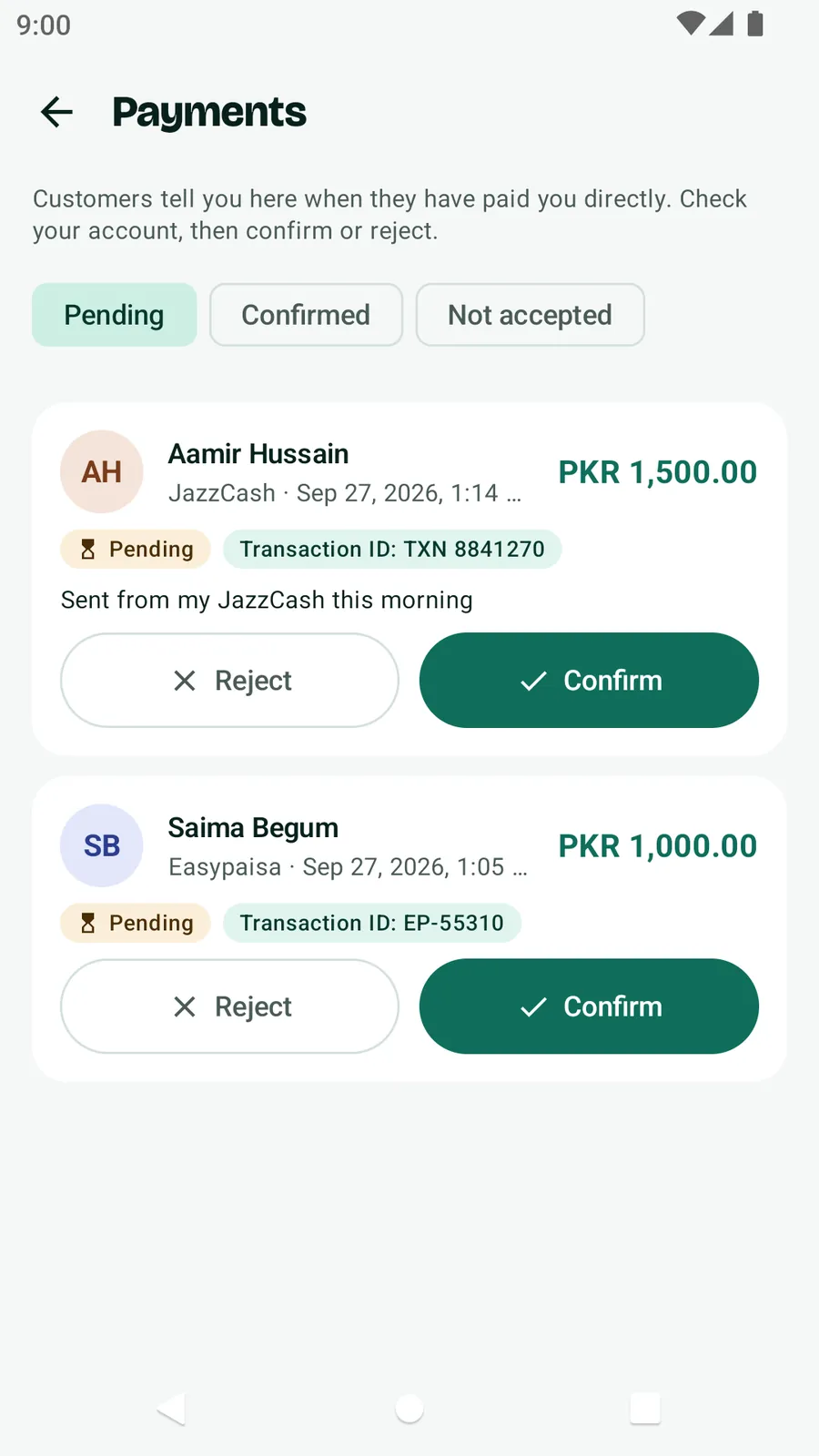
Open Payments from Your business. The tabs are Pending, Confirmed and Not accepted. Tap Confirm and accept the prompt ("… is added to their khata as paid"), or tap Reject and give a reason.
Good to know
- Everyone at the counter, including cashiers, can confirm and reject claims. Changing the payment details themselves is for owners and managers.
- If two people tap Confirm payment on the same claim at once, only one payment is written.
- A customer can have up to 5 claims waiting at a time, so a busy inbox is worth clearing daily.
- Cash handed over at the counter does not need a claim; record it yourself as described in Record a payment received from a customer.
If customers cannot see where to pay you, add your accounts first: Add your JazzCash, Easypaisa or bank details so customers can pay you. The customer's side of this flow is in For customers: open your khata, check entries and pay the shop.
Frequently asked questions
Does the balance change as soon as the customer taps I've paid?
No. A claim is only the customer's word. Their balance changes when someone at the shop taps Confirm payment, which writes the payment on the ledger.
Can a cashier confirm payments?
Yes. Everyone who works the counter, including cashiers, can confirm or reject payment claims.
What if two people tap Confirm at the same time?
Only one payment is written. A second confirm on the same claim returns the payment that already exists.
What does the customer see when I reject a claim?
The claim shows as Not accepted in their My payments list, with the reason you gave, and a customer with alerts on is notified.
Was this article helpful?
Need a hand?
Send us what you see on screen — a screenshot helps — and we will walk you through it.