
Add your JazzCash, Easypaisa or bank details so customers can pay you
In short
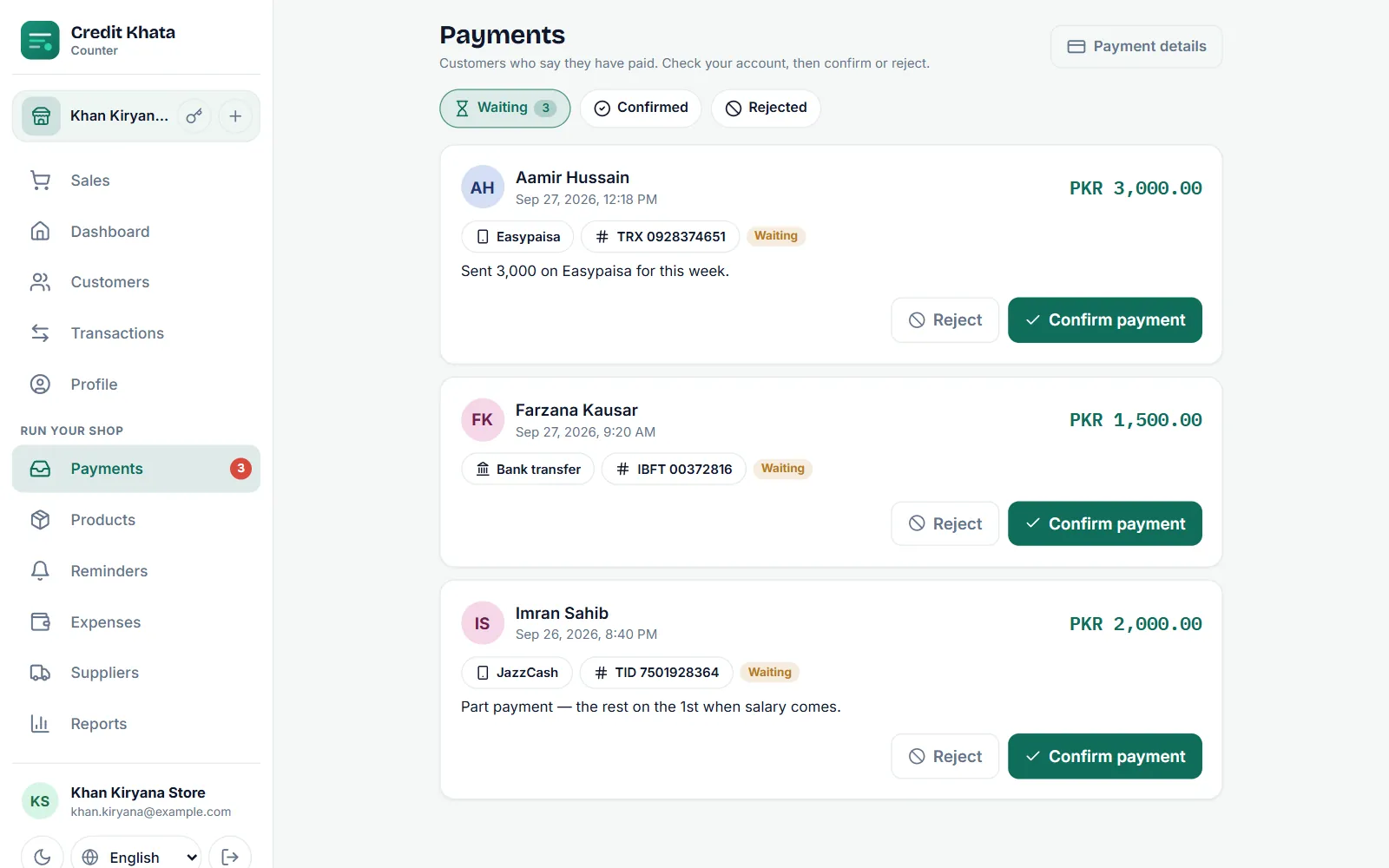
Go to Payments → Payment details, tap JazzCash, Easypaisa, Raast or Bank transfer, enter the account name and number and Save. Customers see them when they tap Pay.
On this page
To let customers pay you from their khata, open Payments and tap Payment details (or go to Profile → Payment details). Tap the way you want to be paid, such as JazzCash, Easypaisa, Raast or Bank transfer, enter the Account holder name and the number, and tap Save. From then on, every customer who taps Pay on their khata sees your details with a Copy button, pays in their own app, and taps I've paid to tell you.
The money goes straight into your account. Credit Khata never processes a payment or holds money, so there is no fee.
Add a payment method
- In the counter app, open Payments and tap Payment details at the top right. You can also reach it from Profile → Payment details ("Accounts customers pay into").
- Under Add a way to get paid, tap one of the tiles. The list follows your shop's country; in Pakistan it shows JazzCash, Easypaisa, Raast, SadaPay and NayaPay, then Bank transfer and Other.
- Enter the Account holder name exactly as it appears in the wallet or bank, so customers can check they are paying the right person.
- Enter the number:
- For JazzCash, Easypaisa, SadaPay and NayaPay, the Mobile number of the account, for example 0300 1234567.
- For Raast, your Raast mobile number or your IBAN.
- For Bank transfer in Pakistan, your 24-character IBAN starting with PK, and the Bank name.
- Optionally tap Label (for example "Shop account") or Instructions for customers (for example "Send the TID from your SMS").
- Tap Save. If the number does not match the usual format, the app says "That does not look right" and shows an example.
Add a QR code, hide or remove an account
Open a saved payment method again to:
- Upload QR: add the QR code from your wallet or bank app (PNG, JPEG or WebP under 2 MB). Customers can open it full size and scan it.
- Show to customers: switch it off to hide the account without deleting it. It shows as Hidden in your list.
- Delete: remove it for good. Customers will no longer see it.
Each branch keeps its own payment details, so a second shop can be paid into a different account.
What your customers see
When a customer taps Pay on their khata, a sheet titled "Pay" and your shop name lists every visible method with the Account name, the Account number and a Copy button, plus your QR code if you added one. It opens with "Send the money to one of these, then tell the shop you've paid."
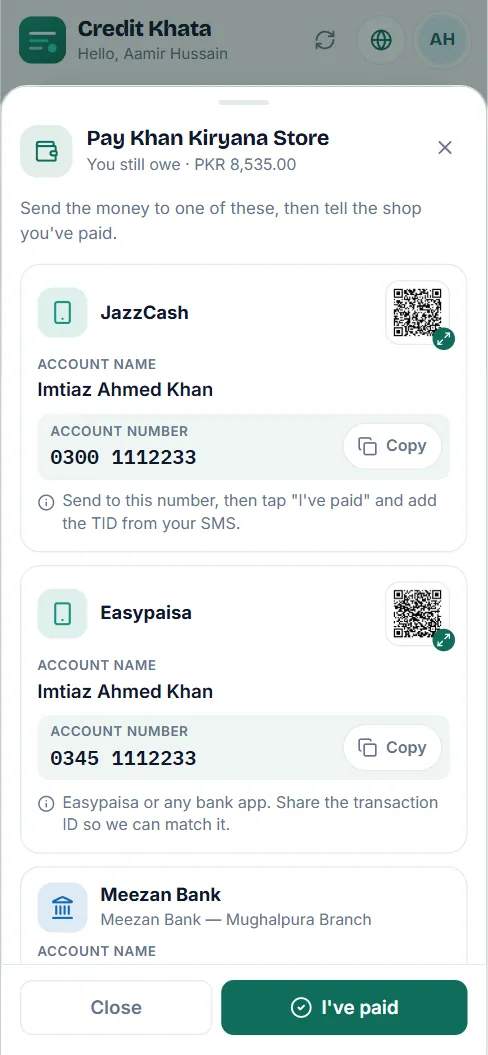
After paying in their own app, the customer taps I've paid and fills in the amount, how they paid, and optionally the transaction ID and a screenshot. That claim lands in your Payments inbox; nothing changes on the ledger until you confirm it. See Confirm a payment a customer says they made.
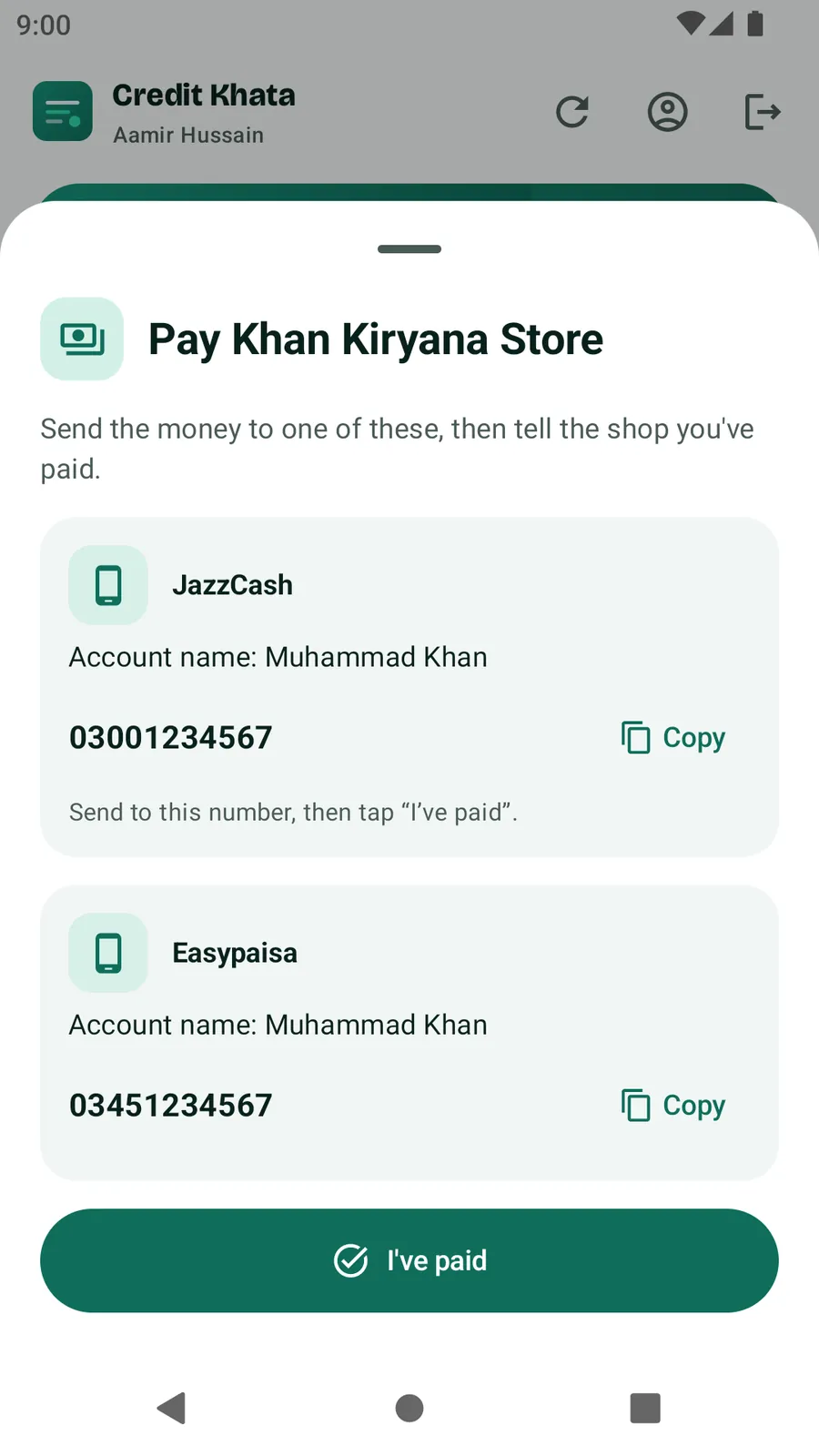
In the Android app
Go to Profile → Payment details ("Wallets, bank accounts, QR codes") and tap Add a way to pay. Owners and managers can add, hide or delete methods and add a QR code from the phone.
Tips
- Add the accounts you actually check every day. A customer who pays into a wallet you rarely open waits longer for their confirmation.
- Put your payment details in reminders too: a custom reminder message can say "JazzCash: 0300 …". See Send payment reminders on WhatsApp or SMS.
- For a longer guide to taking wallet payments in a small shop, read Accept JazzCash, Easypaisa and Raast payments in a small shop.
Frequently asked questions
Does Credit Khata take a fee on payments?
No. Customers pay you directly in their own wallet or banking app. Nothing passes through Credit Khata, so there is no cut and no payment fee.
Which payment methods can I add in Pakistan?
JazzCash, Easypaisa, Raast, SadaPay and NayaPay, plus Bank transfer (with your IBAN) and Other for anything else.
Can I add a QR code?
Yes. Save the payment method first, open it again and tap Upload QR. The image must be under 2 MB.
Can I hide an account without deleting it?
Yes. Open it and switch off Show to customers. It stays in your list marked Hidden until you switch it back on.
Who can change the payment details?
The owner and branch managers. Cashiers cannot, but they can confirm payments that come in.
Was this article helpful?
Need a hand?
Send us what you see on screen — a screenshot helps — and we will walk you through it.