
Record a payment received from a customer
In short
Open the customer, choose Paid under Add transaction, enter the amount and tap Add transaction. Their balance drops at once; part payments are fine.
On this page
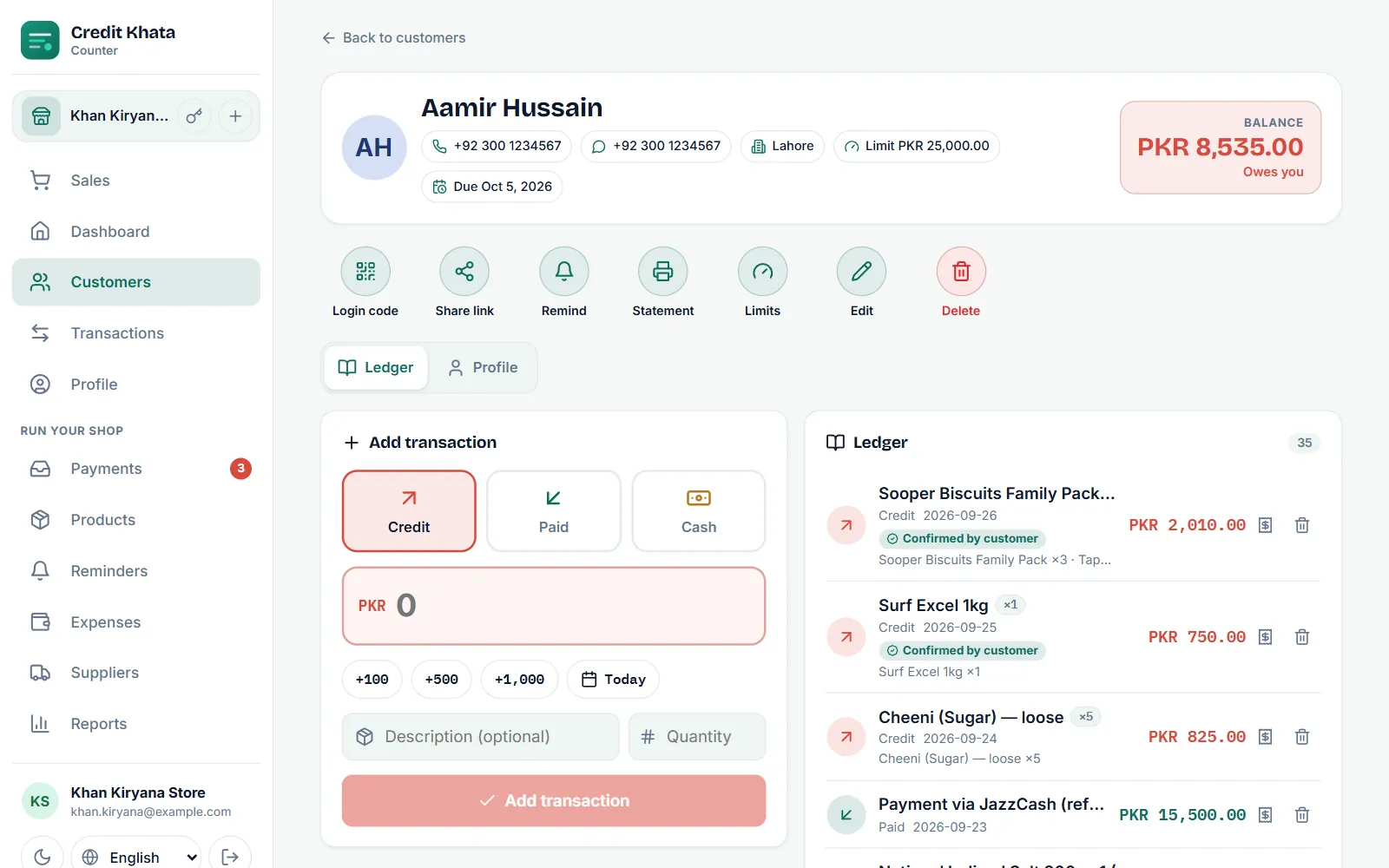
To record money a customer hands you, open their page in Customers, choose Paid under Add transaction, enter the amount and tap Add transaction. The payment appears in green on their ledger and their balance goes down straight away, on your screen and on theirs.
Use Paid for cash at the counter or any payment you have already checked yourself. When a customer pays by JazzCash, Easypaisa or bank and tells you in the app, you confirm their claim instead; see Confirm a payment a customer says they made.
Record a payment in the counter app
- Open Customers and tap the customer. Their Balance is shown at the top right.
- Under Add transaction, tap Paid.
- Type the amount, or use +100, +500 and +1,000 to build it up.
- If the money came in on another day, tap the date chip (it shows Today) and pick the date.
- Optionally add a Description (optional) such as "Cash, salary day" or "Part payment".
- Tap Add transaction.
A customer with alerts turned on gets a notification with the payment and their new balance. If your shop has SMS balance updates switched on (see Send payment reminders on WhatsApp or SMS), they also get a text thanking them for the payment and giving their new balance.
Part payments and advances
Most credit is paid back in pieces, and that is fine: record each amount as it comes in. The balance always shows what is left.
- Part payment: the rest stays on the khata. In Reports → Old dues, a payment clears the customer's oldest credit first, so what remains owed is always the most recent part of what they took.
- Paying more than the balance: record the full amount. The customer's balance goes below zero, their khata says the shop owes them, and the next purchases use it up.
Check it on the statement
Every payment is listed in the Payment received column of the customer's statement, next to the running balance, so both of you can see exactly how the total moved.
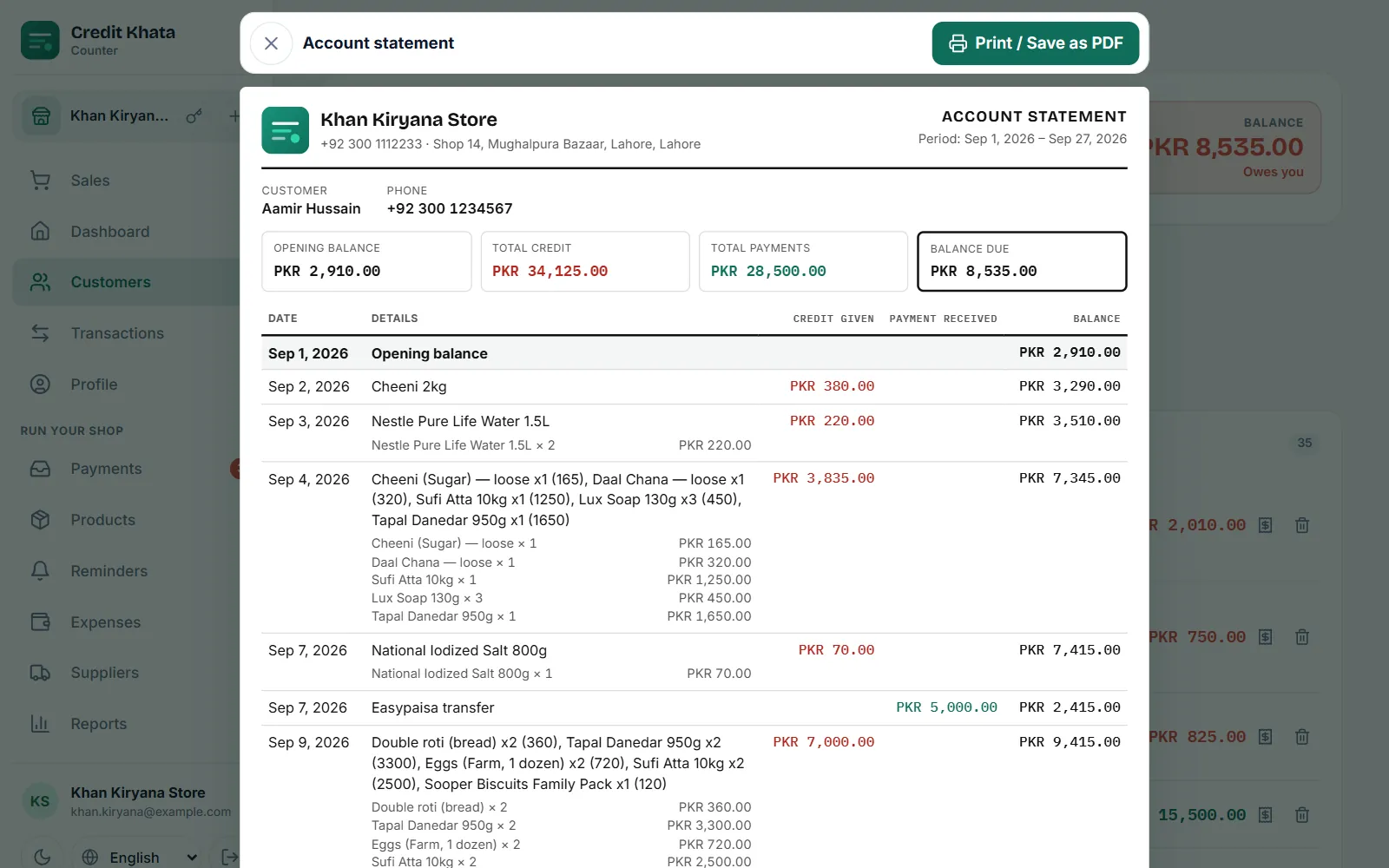
See Print or share a customer's account statement.
Give a receipt
Every line in the customer's ledger has a Print receipt button. The receipt shows the entry number, date, customer, amount and the balance after the payment. Choose the paper width that matches your printer (58 mm or 80 mm), then tap Print / Save as PDF. Everyone at the counter, including cashiers, can print receipts.
Recorded the wrong amount?
Entries are not edited in place. An owner or manager deletes the wrong line with Delete entry and adds it again with the right amount; the ledger then shows only the correct payment. Cashiers cannot delete entries, so they should ask a manager.
In the Android app
Open the customer, tap New entry, choose Paid, enter the Amount, an optional description and the date, then tap Save. In the counter app, entries on a customer's page need a connection; the Android app instead keeps the entry on the phone as Pending when there is no signal and uploads it by itself later. See Work offline and keep your ledger in sync.
Frequently asked questions
Can a customer pay only part of what they owe?
Yes. Enter whatever they paid under Paid. The rest stays on their balance, and the Old dues report treats the payment as clearing their oldest credit first.
A customer paid me by JazzCash and tapped I've paid. Do I add a Paid entry too?
No. Confirm their payment in Payments instead. Confirming writes the Paid entry for you, so adding one by hand would count the money twice.
What if a customer pays more than they owe?
Record the full amount. Their balance goes below zero and shows that the shop owes them, which is cleared by their next purchases.
Can I give the customer a receipt?
Yes. On the entry in their ledger, use Print receipt and choose 58 mm or 80 mm paper, or save it as a PDF.
Was this article helpful?
Need a hand?
Send us what you see on screen — a screenshot helps — and we will walk you through it.