
Add, change or remove your profile photo
In short
Customers add a photo on each shop account, and only that shop sees it. Owners and staff add their own in Profile. A shop owner or manager can take down a customer's photo.
On this page
A profile photo puts a face to a name. Customers can add one on each shop account they hold, and only that shop sees it. Shop owners and staff can add their own, and the owner sees staff photos on the staff list. If a customer's photo is not right for the shop, the owner or a manager can take it down.
A photo is always optional. Where there is none, Credit Khata shows the person's initials.
Customers: a photo on each shop account
Every shop you buy from on credit has its own account, and each account keeps its own photo. Your photo at one shop is never shown to another shop, so you can use a different photo at each, or add one at only some of them. Next to each photo the app says "Only this shop sees it."
In the customer web app
- Open your account and tap your picture or the profile button at the top to open My profile.
- Find the shop's account. The first row under it is Your photo.
- Tap Add photo. On a phone you can take a new photo or pick one from your gallery; on a computer you choose a file.
- The app makes the photo smaller and sends it. When it is saved you see Photo saved.
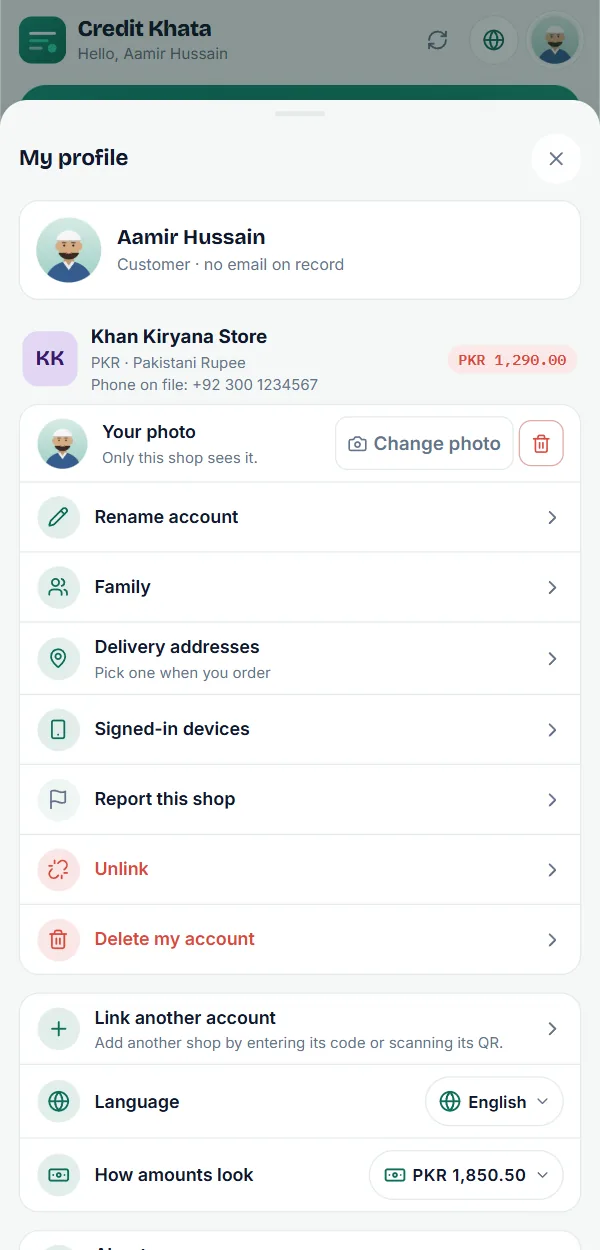
To use another photo, tap Change photo. To take it off, tap the remove button (the bin) next to it, then Remove photo to confirm. The shop then sees your initials again.
If you follow accounts at several shops, the photo at the top of the page is the one on your first account.
In the Android app
Profile photos come to the Android app with its next release:
- Tap the profile button at the top of the screen to open My profile.
- In the shop's account card, tap Add photo under Your photo.
- Choose Take photo or From gallery.
Change photo and the remove button work the same way as on the web. The button at the top shows your photo once it is set.
Owners and staff: your own photo
Shop owners, managers, cashiers and riders can each set a photo on their own login. It is your photo, not your shop's logo: the logo that customers see is set separately (in the counter app, under Storefront in Profile).
- Counter app: open Profile. Under Account, the first row is Your photo; tap Add photo, or Change photo to replace it. On a computer, your photo then shows at the bottom of the sidebar, next to your name.
- Android app (next release): open Profile and find Your photo in the Account group.
- Riders: Your photo is on your profile page, in the counter app and the Android app.
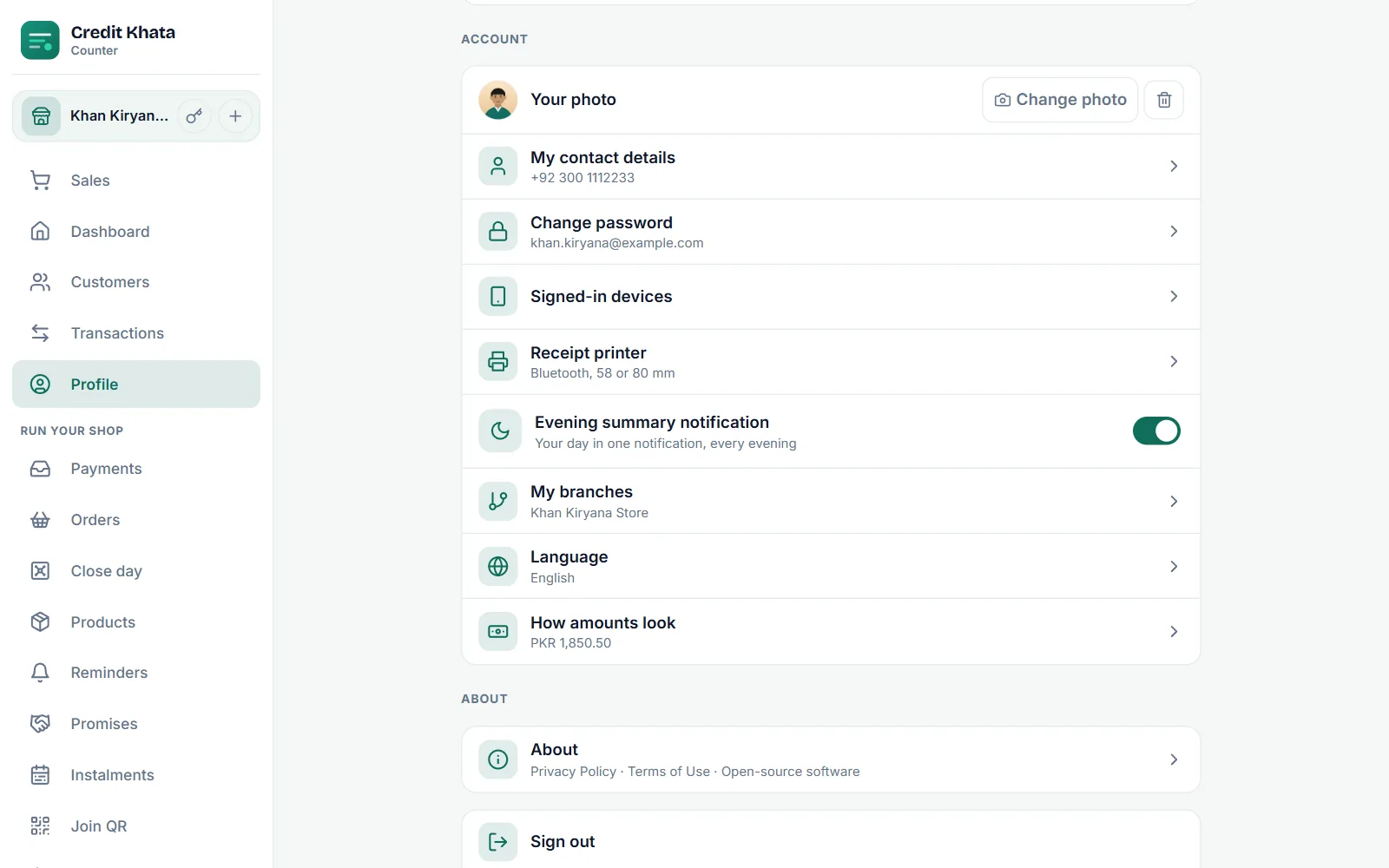
Staff see the note "The shop owner sees it on the staff list." The owner opens Profile → Staff to see every login with its photo, which makes it easy to tell who is who. Customers never see the owner's or a staff member's photo. More about staff logins in Give staff their own logins: manager or cashier.
Take down a customer's photo
A customer chooses their own photo, and the shop cannot add or change it. If a photo is wrong or offensive, the shop owner or a manager can remove it:
- Open the customer from Customers.
- On their photo at the top of the screen, tap the small red bin.
- The Remove photo box asks "Remove this customer's photo? They can add a new one." Tap Remove photo.
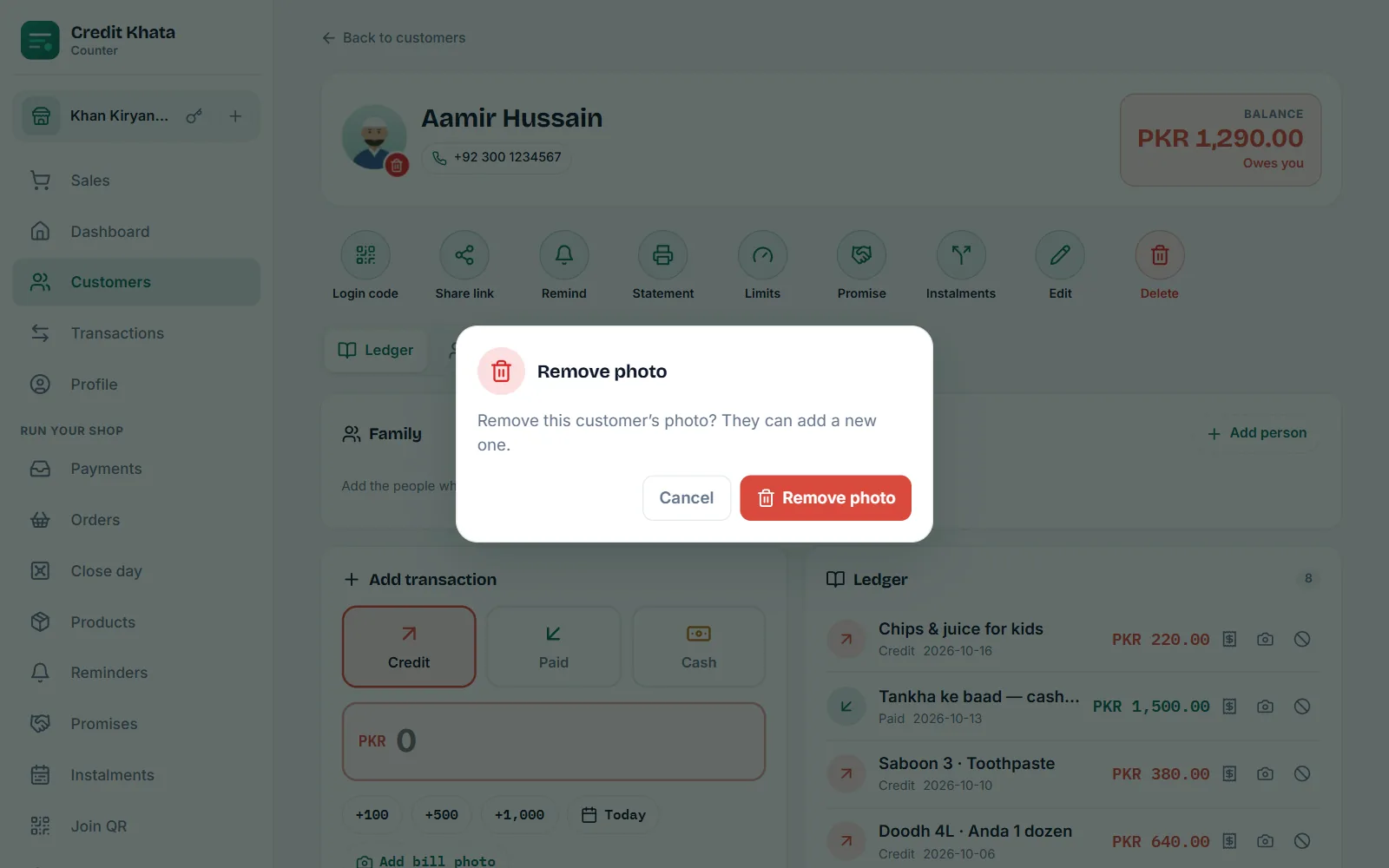
The photo is deleted, and the shop sees the customer's initials again. The customer can add a new photo later. Cashiers and riders don't see the bin. In the Android app (next release), the same bin is on the customer's screen.
Who sees which photo
| Photo | Who sets it | Who sees it | Who can remove it |
|---|---|---|---|
| A customer's photo at a shop | The customer | That shop's owner and staff, and the customer | The customer; the shop owner or a manager |
| An owner's own photo | The owner | The owner | The owner |
| A staff member's own photo | The staff member | The staff member and the shop owner, on the staff list | The staff member |
Good to know
- Photo files: JPG, PNG or WebP. The app shrinks a large photo before sending it, so a camera photo is fine.
- No hidden details: before a photo is stored it is redrawn, which removes the location and device details a camera can write into it.
- Internet needed: adding or removing a photo needs a connection. If it fails, you see "The photo could not be uploaded. Try again."
- Deleted with the account: a photo is deleted when you remove it, when you delete your account, when a shop deletes a customer, and when the owner removes a staff login. See Download your data, secure your account or delete it.
- The Credit Khata team can also delete a photo that breaks the terms of use. You can set a new one afterwards.
New to your account as a customer? Start with For customers: open your account, check entries and pay the shop.
Frequently asked questions
Can other shops see the photo I set?
No. Each shop account has its own photo, and only that shop's owner and staff see it. You can use a different photo at each shop, or none at all.
Do I have to add a photo?
No. A photo is optional. Without one, your initials show instead.
The shop removed my photo. Can I add one again?
Yes. Open My profile and tap Add photo under that shop's account. Choose a photo the shop is happy to see.
Who can remove a customer's photo?
The shop owner or a manager, from the customer's screen. Cashiers and riders cannot.
Do customers see my photo as the shop owner?
No. Customers see your shop's logo and name, never the owner's or a staff member's own photo.
Was this article helpful?
Need a hand?
Send us what you see on screen — a screenshot helps — and we will walk you through it.