
Add, change or comot your profile photo
For short
Customers dey add photo for each shop account, and na only dat shop dey see am. Owners and staff dey add their own for Profile. Shop owner or manager fit take down customer photo.
For this page
Profile photo dey put face to name. Customers fit add one for each shop account wey dem get, and na only dat shop dey see am. Shop owners and staff fit add their own, and di owner dey see staff photos for di staff list. If customer photo no correct for di shop, di owner or manager fit take am down.
Photo no dey ever compulsory. Where no photo dey, Credit Khata dey show di person initials.
Customers: photo for each shop account
Every shop wey you dey buy from on credit get im own account, and each account dey keep im own photo. Your photo for one shop no dey ever show for another shop, so you fit use different photo for each one, or add photo for only some of dem. Beside each photo di app dey talk "Na only dis shop fit see am."
For di customer web app
- Open your account and tap your picture or di profile button for di top to open My profile.
- Find di shop account. Di first row under am na Your photo.
- Tap Add photo. For phone you fit snap new photo or pick one from your gallery; for computer you go choose file.
- Di app go make di photo small and send am. When e don save you go see Photo don save.
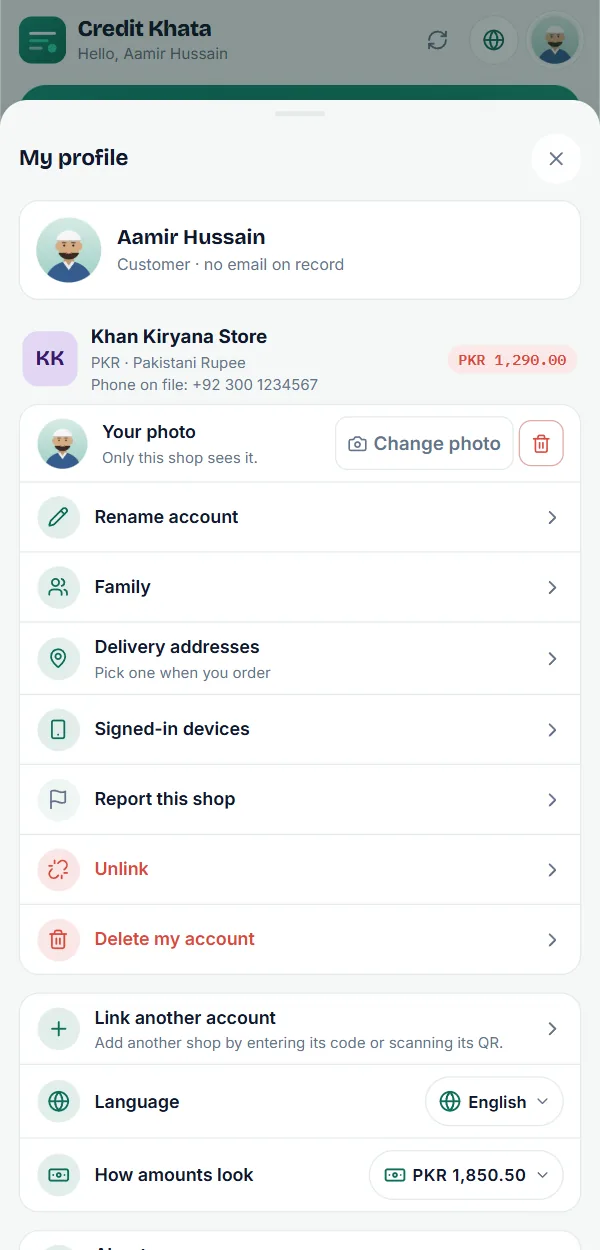
To use another photo, tap Change photo. To comot am, tap di remove button (di bin) beside am, den Comot photo to confirm. Di shop go den see your initials again.
If you dey follow accounts for plenty shops, di photo for di top of di page na di one for your first account.
For di Android app
Profile photos go reach di Android app with im next release:
- Tap di profile button for di top of di screen to open My profile.
- For di shop account card, tap Add photo under Your photo.
- Choose Snap photo or From gallery.
Change photo and di remove button dey work di same way as for di web. Di button for di top go show your photo once you don set am.
Owners and staff: your own photo
Shop owners, managers, cashiers and riders fit each set photo for their own login. Na your photo, no be your shop logo: di logo wey customers dey see, dem dey set am separately (for di counter app, under Shop front for Profile).
- Counter app: open Profile. Under Account, di first row na Your photo; tap Add photo, or Change photo to replace am. For computer, your photo go den show for di bottom of di sidebar, beside your name.
- Android app (next release): open Profile and find Your photo for di Account group.
- Riders: Your photo dey your profile page, for di counter app and di Android app.
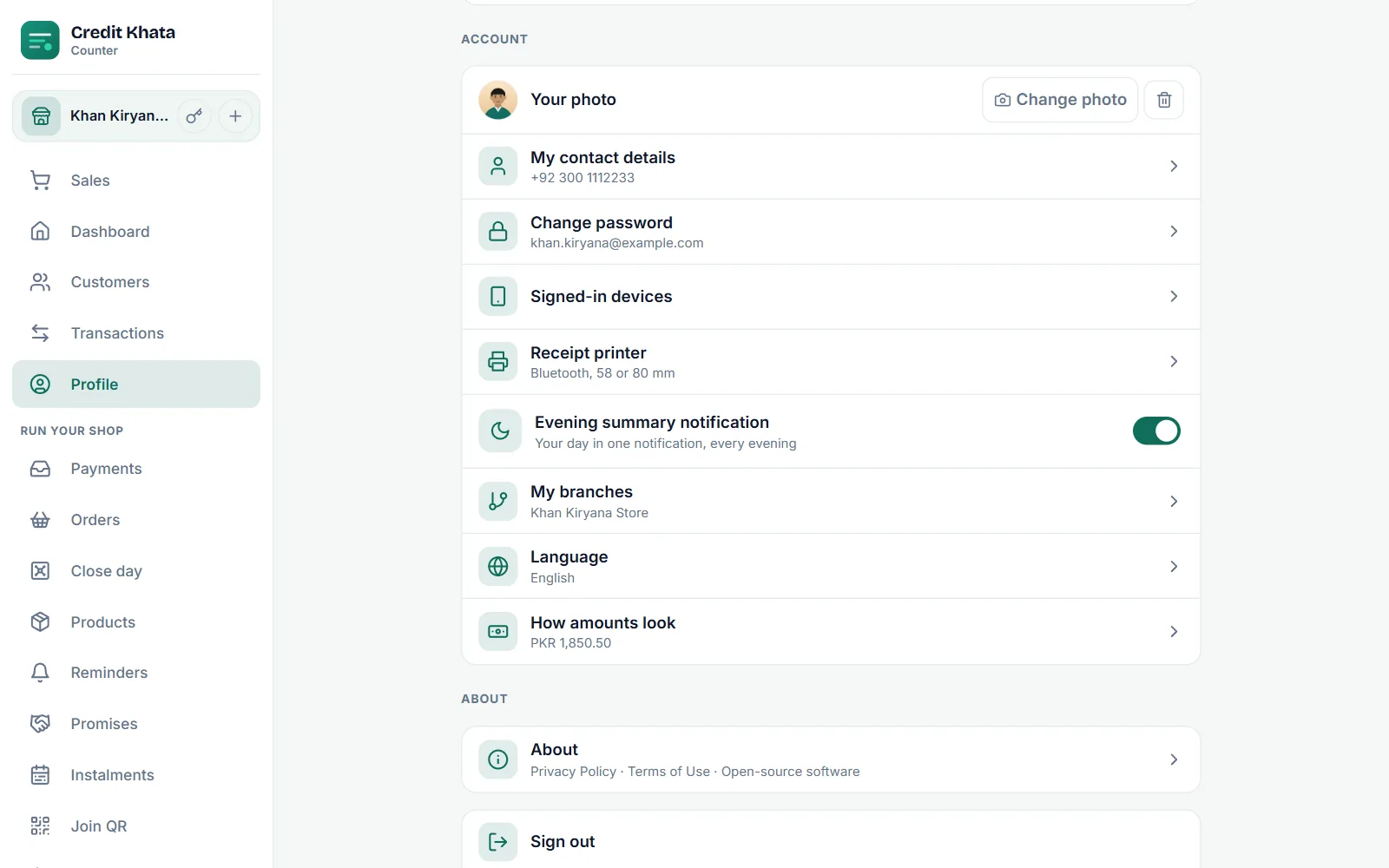
Staff dey see di note "Di shop owner go see am for staff list." Di owner dey open Profile → Staff to see every login with im photo, and dat one dey make am easy to know who be who. Customers no dey ever see di owner or staff member photo. More about staff logins for Give your staff their own login: manager or cashier.
Take down customer photo
Customer dey choose im own photo, and di shop no fit add or change am. If photo no correct or e dey offensive, di shop owner or manager fit comot am:
- Open di customer from Kostoma dem.
- For their photo for di top of di screen, tap di small red bin.
- Di Comot photo box go ask "Comot dis kostoma photo? Dem fit add new one." Tap Comot photo.
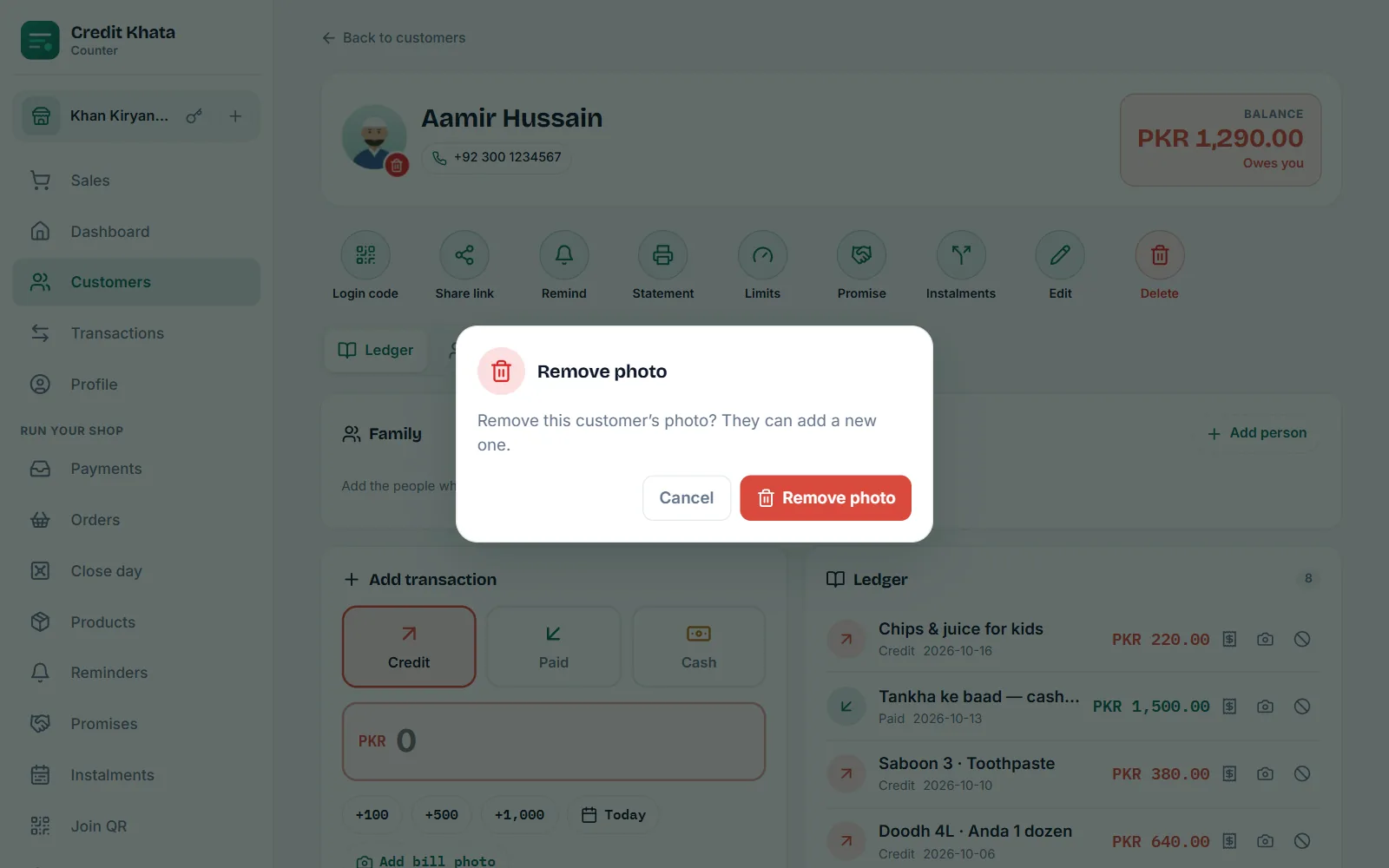
Di photo go delete, and di shop go see di customer initials again. Di customer fit add new photo later. Cashiers and riders no dey see di bin. For di Android app (next release), di same bin dey di customer screen.
Who dey see which photo
| Photo | Who dey set am | Who dey see am | Who fit comot am |
|---|---|---|---|
| Customer photo for one shop | Di customer | Dat shop owner and staff, and di customer | Di customer; di shop owner or manager |
| Owner own photo | Di owner | Di owner | Di owner |
| Staff member own photo | Di staff member | Di staff member and di shop owner, for di staff list | Di staff member |
Wetin good to know
- Photo files: JPG, PNG or WebP. Di app dey shrink big photo before e send am, so camera photo dey fine.
- No hidden details: before dem store photo, dem dey redraw am, and dat one dey remove di location and device details wey camera fit write inside am.
- You need internet: to add or comot photo need connection. If e fail, you go see "Di photo no fit upload. Try again."
- E dey delete with di account: photo dey delete when you comot am, when you delete your account, when shop delete customer, and when di owner remove staff login. See Download your data, secure your account or delete am.
- Di Credit Khata team fit also delete photo wey break di terms of use. You fit set new one after.
New to your account as customer? Start with For customers: open your account, check entries and pay di shop.
Questions wey people dey ask
Other shops fit see di photo wey I set?
No. Each shop account get im own photo, and na only dat shop owner and staff dey see am. You fit use different photo for each shop, or no photo at all.
I must add photo?
No. Photo no dey compulsory. If you no get one, your initials go show instead.
Di shop don comot my photo. I fit add one again?
Yes. Open My profile and tap Add photo under dat shop account. Choose photo wey di shop go happy to see.
Who fit comot customer photo?
Di shop owner or manager, from di customer screen. Cashiers and riders no fit.
Customers dey see my photo as di shop owner?
No. Customers dey see your shop logo and name, never di owner or staff member own photo.
This article help you?
You need help?
Send us wetin you dey see for screen — screenshot go help — and we go waka you through am.