
Open your shop account, den add your first customer
For short
For di counter app, tap Open shop and finish three short steps. Den go Kostoma dem → New kostoma, add name, phone and any old balance, and share their account.
For this page
You go open Credit Khata shop for di counter app: tap Open shop, put your name, email and password, give your shop name, pick your currency and tap Create my shop. After dat, go Kostoma dem → New kostoma, put name and phone number (plus any balance wey you carry come from your paper register) and share their account with link or login code.
Di whole setup na few minutes, you no need card, and every new shop dey start with one month of Pro so you fit try everything.
Before you start
You need email address wey you fit open, and browser for computer, tablet or phone. Di counter app dey for ck.abdohoo.app/pos-pwa. If you prefer real app, Credit Khata dey for Google Play for Android 8.0 or newer; e dey use di same account, so you fit start for one and continue for di other.
Step 1: open your own shop account
- Open di counter app and tap Open shop.
- For di first step, You, put Your name, Email, Password (at least 8 characters) and Confirm password, den tap Next.
- For Your shop, type your Shop name and tap your Kind business, for example Provision / general store or Pharmacy / chemist.
- Under Add shop details (no compulsory) you fit add phone, WhatsApp number, city, address or tax number now, or skip am and fill am later from Profile. Tap Next.
- For Money, answer "Which currency you dey use for your book?", for example NGN. Any currency dey work, and you fit change am later for your profile.
- If security check show, tick am, den tap Create my shop.
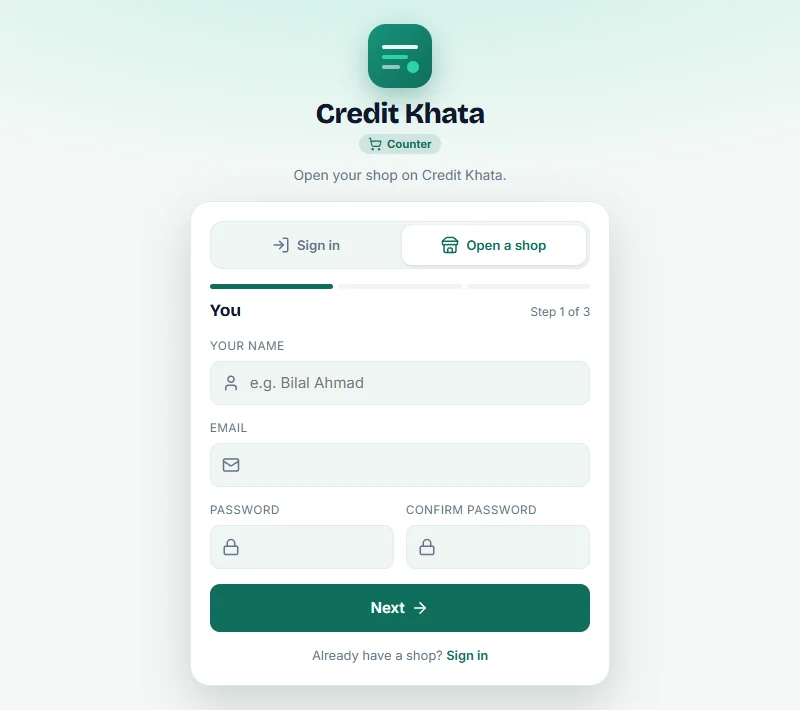
You go land for di Sales screen, you don already sign in, and welcome email go confirm which address di account dey on. Na dat address password reset go go, so use one wey you dey check.
Step 2: add di first customer
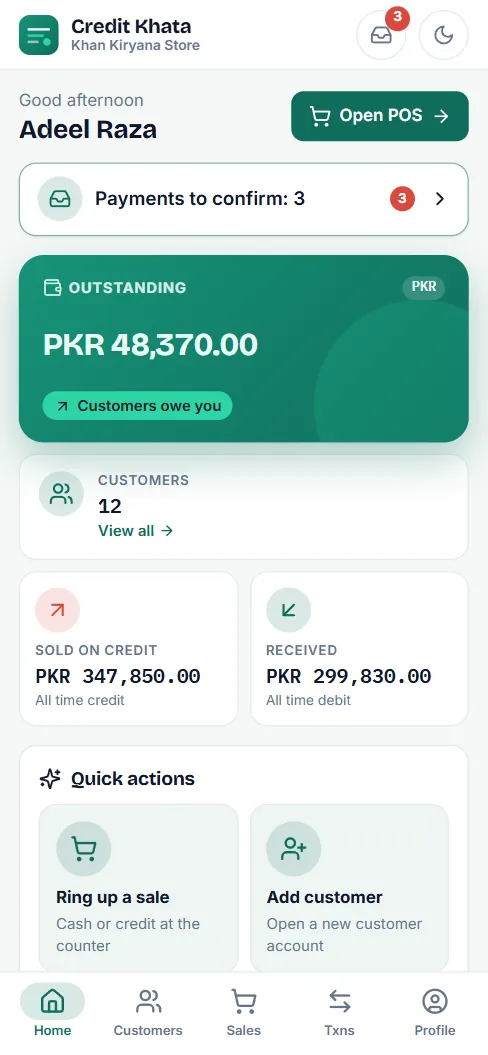
- Open Kostoma dem and tap New kostoma. For phone you fit also go Home and tap Add kostoma under Quick action dem.
- Put di customer Name and Phone. Name and phone number don do.
- If dem don already owe you from di paper register, tap Opening balance and put dat amount.
- Add any other thing only if you need am: WhatsApp, City, Address, Currency, Note, or Email & password if di customer wan sign in with email.
- Tap Create kostoma. Their page go open, ready for di first entry.
Step 3: make di customer see their account
Credit Khata na shared ledger: di customer dey read di same record wey you write. For di customer page you get two ways to give dem access:
- Share link go make link wey you fit Copy link or Send am for WhatsApp. E dey work once and e go expire for 24 hours, so e good for customers wey no dey stand for di counter.
- Login code go show short code and QR code. Na one-time use and e go expire for about 5 minutes, so use am when di customer dey front of you: dem go type di code or scan di QR for their own phone.
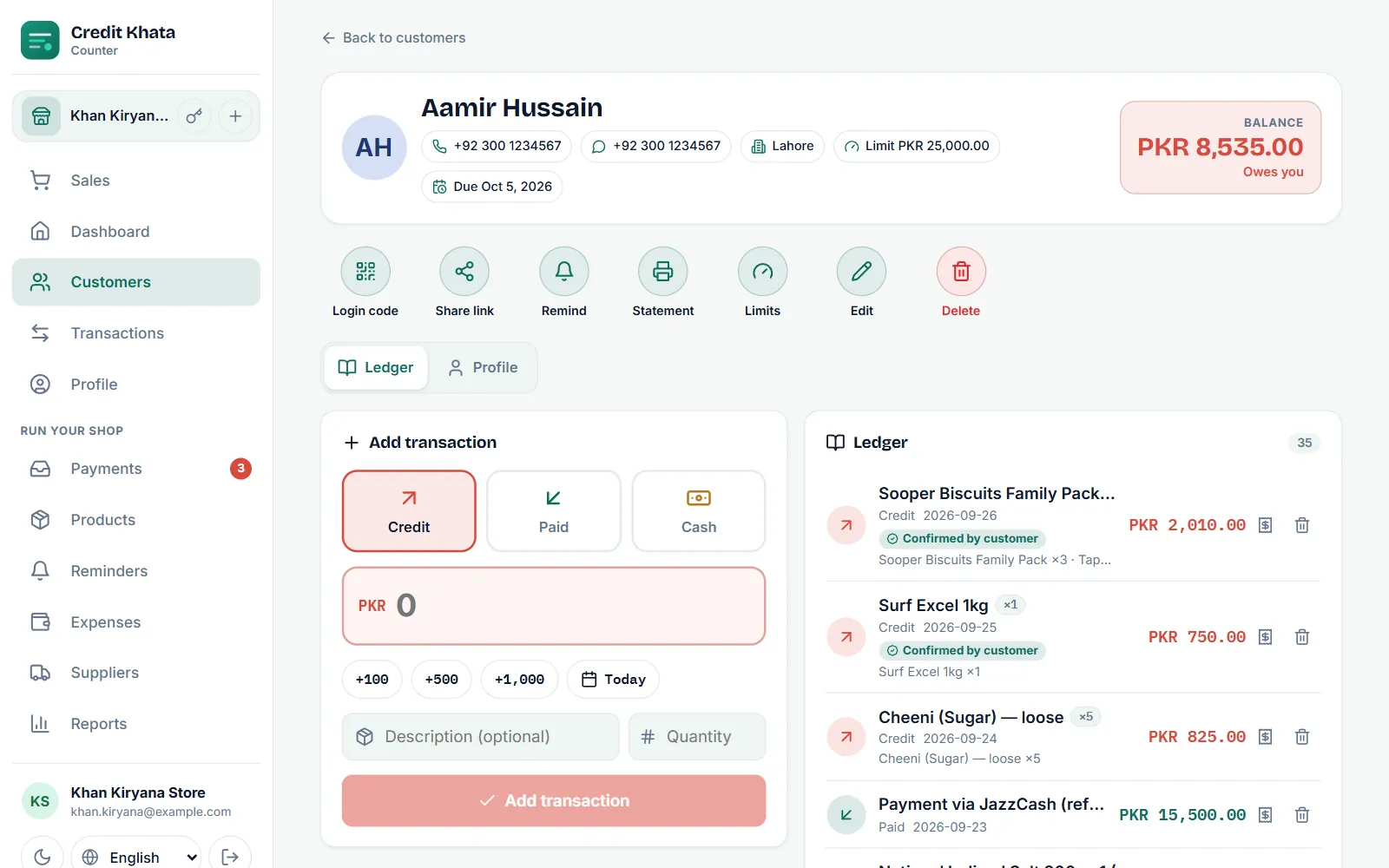
Di customer no need install anything. Di link go open their account for di Credit Khata app if dem get am, or for browser if dem no get am. Wetin dem go see, we explain am for For customers: open your account, check entries and pay di shop.
To use di Android app instead
For di Android app, tap Open shop for di sign-in screen and follow di same steps, or sign in with di email and password wey you create for web. If you no wan type password, open Profile for di web counter, tap Show sign-in QR under Sign in for your phone, den tap Scan QR for di app sign-in screen and point di camera for am; di code dey work once and e dey change every few minutes. You dey add new customers from di Kostoma dem tab with di New kostoma button. Customers and entries wey you add for phone go save for di phone first and dem go sync by themselves, even if network cut.
Wetin to do next
- Book di first sale: Book credit sale for di counter.
- Record money wey you collect: Record payment wey you collect from customer.
- Make customers fit pay you by wallet or bank: Add your JazzCash, Easypaisa or bank details so customers fit pay you.
Questions wey people dey ask
Credit Khata free for shop?
Yes. Di Free plan carry di credit book itself, with limit on how many customers and how many transactions a day, and every new shop dey get im first month of Pro free. Pro and Business na paid plans for shops wey busy pass; you fit upgrade for di Android app through Google Play, or with reseller key for di counter app under Profile → Plan. Customers no dey ever pay.
My customer need to install app?
No. Customer fit open im account for any phone browser from di link or login code wey you give am. Di Android app no dey compulsory.
I fit carry over wetin customers don already owe for my paper register?
Yes. When you dey create di customer, tap Opening balance and put wetin dem owe today. New entries go add on top of am.
I fit use di same account for computer and phone?
Yes. Di counter app dey run for browser on computer, tablet or phone, and di Android app dey sign in to di same shop and di same ledger. For di web counter, Profile → Sign in for your phone go show QR wey di Android app fit scan, so you no need type your password.
I don forget my password. Wetin I go do?
Tap You forget password? for di sign-in screen and put di email of your shop account. Di reset link dey work only once and e go last one hour.
This article help you?
You need help?
Send us wetin you dey see for screen — screenshot go help — and we go waka you through am.