
Give your staff their own login: manager or cashier
For short
For Pro, go Profile → Staff → Add staff, put their name and their own email or phone number, choose Manager or Cashier, and save. Copy di password wey e show once, or show sign-in QR.
For this page
Na only di owner fit add staff, and to add staff login na part of Pro. Open Profile → Staff, tap Add staff, put di person Name and their own Email or Phone number (or both), choose Manager or Cashier under Role, and save. Di password go show only once: copy am and give dem, or make dem scan one-time Sign-in QR instead. Dem go sign in to di counter app or di Android app with dat email or phone number and see only wetin their role allow, for one branch.
Separate logins mean say every entry go record who make am, and nobody need your owner password to work di counter.
Di staff roles
| Owner | Manager | Cashier | |
|---|---|---|---|
| Sell for cash or credit, add customers | Yes | Yes | Yes |
| Record payments, confirm "I don pay" claims | Yes | Yes | Yes |
| Send reminders, print receipts, see products | Yes | Yes | Yes |
| Cancel entries, delete customers, change opening balances | Yes | Yes | No |
| Pass credit limit, set limits and due dates | Yes | Yes | No |
| Settle queries, manage payment details | Yes | Yes | No |
| Products, stock, expenses, suppliers, reports, statements | Yes | Yes | No |
| Staff, branches, data download, two-step login | Yes | No | No |
For di app own words: Manager "E dey run di branch: fit change wetin people owe, delete entries and see reports", and Cashier "E dey sell and collect payment. E no fit delete record or see di books."
Shops wey dey deliver also get third role, Rider, wey "E dey deliver orders and collect cash for door" and e dey see only di deliveries wey dem give am: no customers, accounts or sales.
Add staff login
- Open Profile den tap Staff ("Managers and cashiers").
- If you get more than one branch, tap di branch wey dis person dey work. Each login dey work for one branch.
- Tap Add staff.
- Put di person Name.
- Put their own Email, their Phone number, or both. You need at least one, and each one fit sign dem in. If you type number without im country code, e go take your branch country code.
- Choose di Role: Manager or Cashier.
- Save. Di app go show wetin dem go take sign in (Dem go sign in with) and di Password, with note: "Save dem now — na only once we go show di password." Tap Copy, give di details to di person, den tap Don finish.
Credit Khata no dey send staff any email, not when you add dem and not when you reset password, so na you go give dem di password yourself. Email wey don already get Credit Khata account no fit work for staff login, and one phone number dey sign in to only one staff login, so two staff no fit share one number.
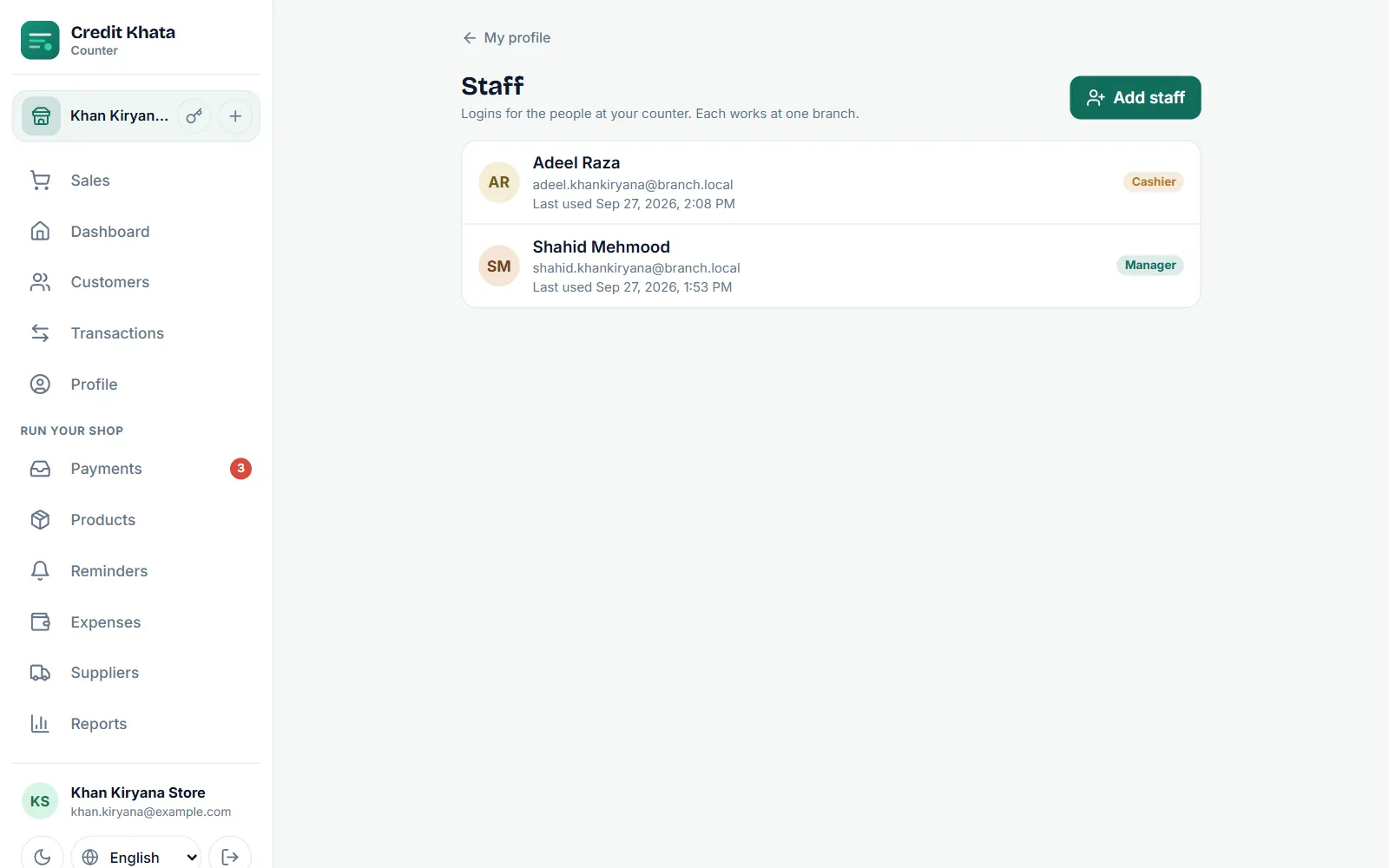
Change role, reset password or remove login
Tap person for di Staff list:
- Change di Name, Email, Phone or Role and tap Save. Keep email or phone number wey dem go take sign in.
- New password dey make fresh password; di old one go stop to work sharp sharp. Staff no fit reset their own password with You forget password?; na only di owner fit do am.
- Delete dey remove di login. Dem go sign out, their entries go remain for your books, and their email and phone number go free so you fit add dem again.
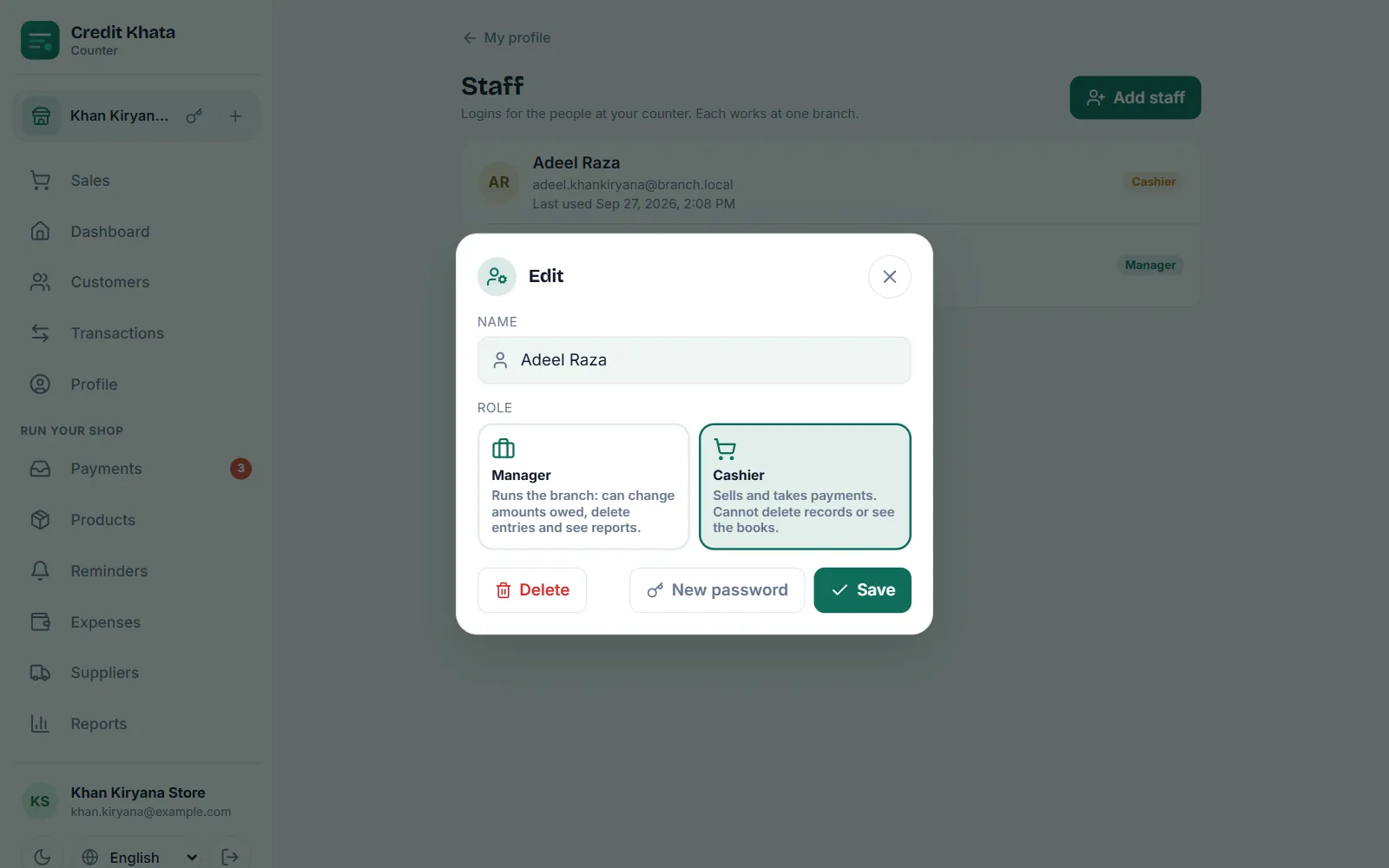
Di list also dey show di last time wey each login work, or E never login yet, so you fit see logins wey nobody dey use again. If di shop move from Pro to Free, logins wey dey already go still work; na only to add new ones go wait for Pro.
How staff dey sign in
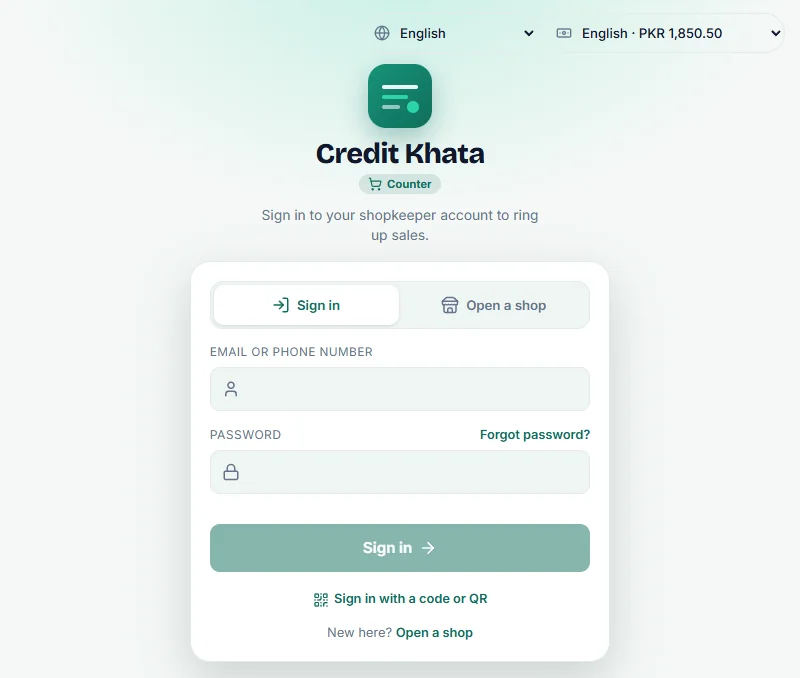
- Open di counter app for ck.abdohoo.app/pos-pwa or di Android app.
- For Sign in, type their email or phone number for Email or phone number, and di password for Password. Phone number dey work with or without im country code.
- Tap Sign in.
Old versions of di Android app dey call dat box Email or username; email or phone number dey work there too.
Logins wey dem make before staff start to sign in with their own email or phone go keep their old username, and e still dey work for di same box. To change one over, open di person for Profile → Staff and fill Email or Phone: email go replace di old username, but phone number go join beside am, so both go still work.
Without password: for Profile → Staff, tap di QR button beside di person to show their Sign-in QR. E dey work once, for 5 minutes. For di sign-in screen dem go tap Sign in with code or QR (for di Android app, Scan QR) and scan am, or type di code wey dey under am.
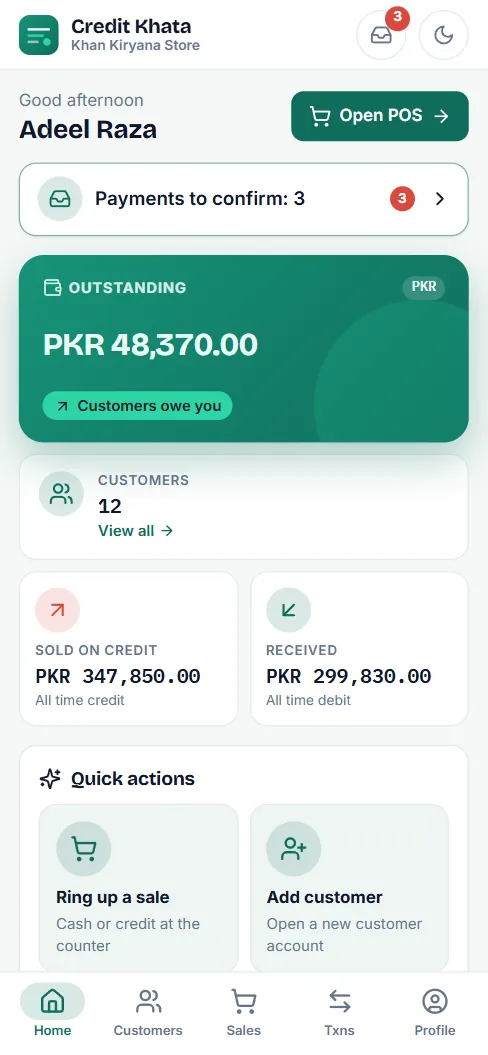
Cashier screens just leave out wetin dem no fit use: no Reports, Expenses or Suppliers for di menu, no Cancel entry buttons, and no Limit or Statement for customer page.
Good practice
- Give every person their own login, even family members. Transactions and reminders go show "by" and di name of di person wey do am.
- Make shop assistants Cashier and keep Manager for di person wey dey run di branch when you no dey.
- Reset password when person leave, or delete their login.
- Protect di owner account with two-step login: Download your data, secure your account or delete am.
For di Android app, di owner go find di same list under Profile → Staff and fit Add staff, Reset password, Remove login or show sign-in QR. If old version of di app still dey ask for Username, type di person email or phone number there.
To understand why di roles dey, read Shop staff permissions: wetin cashier and manager suppose do.
Questions wey people dey ask
How staff go take sign in?
For di counter app or di Android app, for Sign in, dem go type their email or phone number for di Email or phone number box and di password wey you give dem. Or dem go tap Sign in with code or QR and scan di Sign-in QR wey you show dem from Profile → Staff.
Cashier fit delete entry?
No. Cashiers fit sell, collect payments, add customers, confirm payment claims and send reminders, but dem no fit cancel entries, delete customers, change wetin people owe or see reports.
Wetin go happen to entries when I remove staff login?
Dem go remain. When you remove login, e go sign dat person out and di login go stop to work; everything wey dem record go remain for your books. Their email and phone number go free, so you fit add dem again later.
I need Pro for staff logins?
To add new staff login na part of Pro, same as to open more branches. Every new shop dey get im first month of Pro free. If di shop later move to Free, logins wey you don already make go still work.
My staff don forget im password. Wetin now?
Staff no fit use You forget password?, and Credit Khata no dey ever send dem email. Open Profile → Staff, tap their name, choose New password and give dem di new one yourself. Di old password go stop to work.
My staff still dey sign in with old username. E still dey work?
Yes. Logins wey dem make before staff start to use their own email or phone go keep their username. To change one over, tap di person for Profile → Staff and fill Email or Phone: email go replace di username, and phone number go join beside am.
Two staff fit share one phone number or email?
No. One phone number dey sign in to only one staff login, and email wey don already get Credit Khata account no fit work for staff login. Give each person their own number, or use their email instead.
This article help you?
You need help?
Send us wetin you dey see for screen — screenshot go help — and we go waka you through am.