New in Credit Khata: profile photos for customers, owners and staff
Customers can add a photo on each shop account, seen only by that shop. Owners and staff add their own, and an owner or manager can take down a customer's photo.
On this page
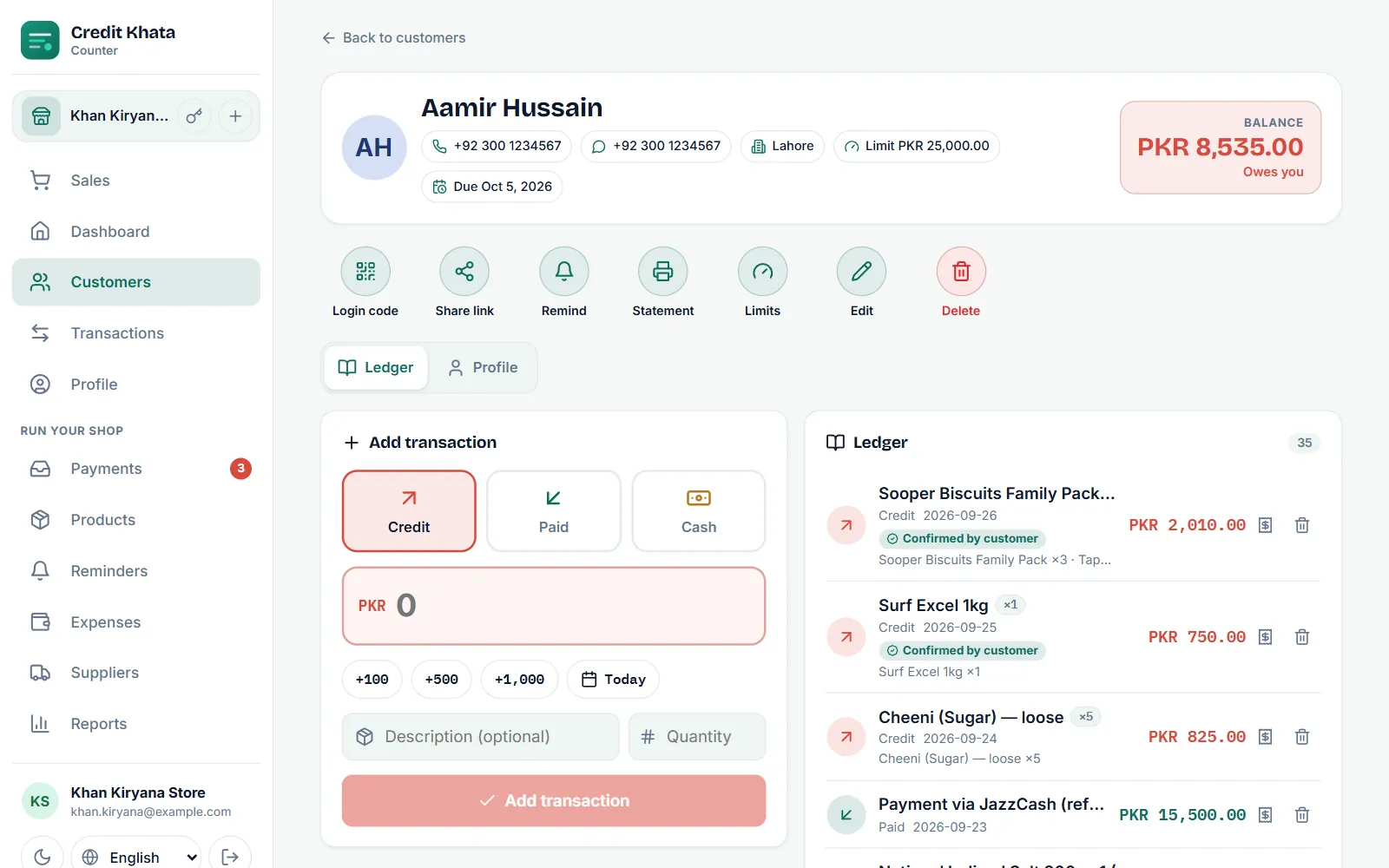
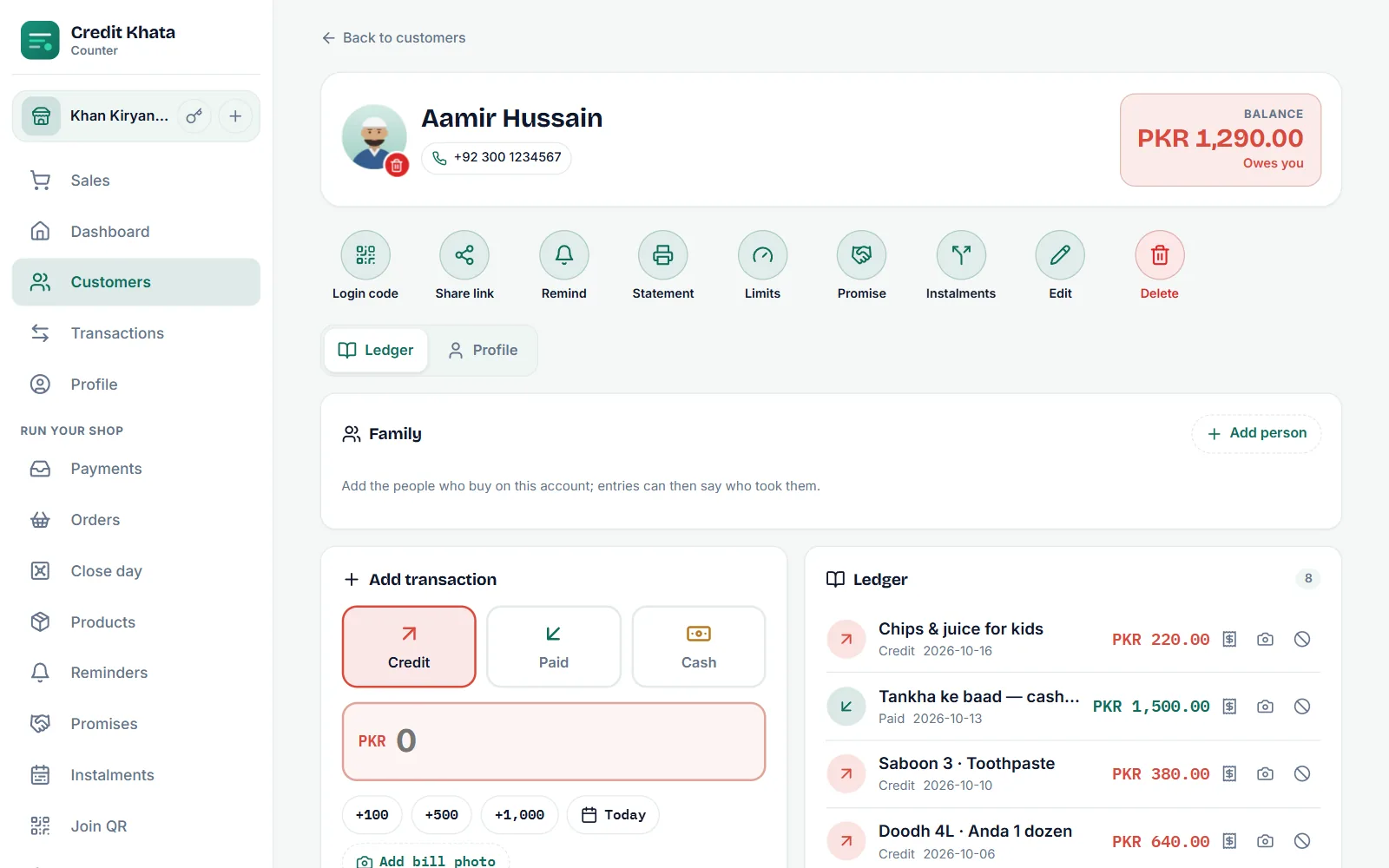
This release puts faces to names. Customers can now add a profile photo on each shop account they hold, and only that shop sees it. Shop owners and staff can add their own photo, and the owner sees everyone's on the staff list. If a customer's photo isn't right for the shop, the owner or a manager can take it down in two taps.
Profile photos are in the counter app and the customer web app today. The Android app gets them with its next release.
Why photos help at the counter
A busy shop can have three customers called Ahmed, or a son and his father on two accounts. A face next to the name tells them apart before you book an entry, and it helps a new cashier learn who is who. The same goes for staff: when a business has several branches and several logins, a photo on each login makes the staff list easy to read.
A photo is always optional. Where there is none, Credit Khata shows the person's initials, as before.
For customers: one photo for each shop
Every shop you buy from on credit keeps your account separately, and now each account keeps its own photo too. Your photo at one shop is never shown to another shop. You can use the same photo everywhere, a different one at each shop, or add one at only some of them.
In the customer web app:
- Open My profile from the button at the top of your account.
- Under the shop's account, find Your photo, with the note "Only this shop sees it."
- Tap Add photo, then take a photo or pick one from your gallery.
Change photo puts in a different one, and the bin next to it removes it after you confirm. The app makes a large camera photo smaller before sending it, so it uploads quickly even on a slow connection.
In the Android app, from its next release, the same Your photo row sits in each account card of My profile, with Take photo and From gallery to choose from.
For owners and staff: your own photo
Owners, managers, cashiers and riders can each set a photo on their own login. It is a photo of you, not your shop's logo, which customers keep seeing as before.
- Counter app: Profile, then Your photo under Account. On a computer it then shows at the bottom of the sidebar, next to your name.
- Riders: on your profile page.
- Android app (next release): Profile, then Your photo in the Account group.
Staff see the note "The shop owner sees it on the staff list." The owner opens Profile → Staff to see every login with its photo. Customers never see the owner's or a staff member's own photo.
For owners and managers: take down a photo
Customers choose their own photos, and a shop can't add or change one for them. But a shop should not have to look at a photo that is wrong or offensive. So the owner and managers can remove one:
- Open the customer.
- Tap the small red bin on their photo.
- Confirm with Remove photo: "Remove this customer's photo? They can add a new one."
The shop sees the customer's initials again, and the customer can set a new photo later. Cashiers don't get the bin. The Credit Khata team can also delete a photo that breaks the terms of use.
Who sees what
| Photo | Customer | Shop owner | Manager | Cashier |
|---|---|---|---|---|
| A customer's photo at your shop | Sets and removes their own | Sees and can remove | Sees and can remove | Sees |
| An owner's or staff member's own photo | Never | Sees every staff photo on the staff list | Sees their own | Sees their own |
Privacy, built in
- Only the shop it belongs to. A customer's photo stays with that one shop account.
- No hidden details. Before a photo is stored it is redrawn, which removes the location and device details a camera can write into it.
- Gone when it should be. A photo is deleted when you remove it, when you delete your account, when a shop deletes a customer and when the owner removes a staff login. Our privacy policy and account deletion page now list profile photos too.
Step by step, with screenshots: Add, change or remove your profile photo. For customers new to their account, see For customers: open your account, check entries and pay the shop, and for setting up staff, Give staff their own logins: manager or cashier.
How to get it
- Counter app: open ck.abdohoo.app/pos-pwa. When a new version is ready, it offers Update now.
- Customers do not need to do anything. Your photo appears in My profile.
- Android: profile photos come with the next release. Update Credit Khata from Google Play when it arrives.
Profile photos come with every plan, including Free, and every screen around them is available in Urdu and many other languages. To change the language, see Change the app language (Urdu, Arabic, Hindi and more).
Frequently asked questions
How do I get profile photos?
The counter app in your browser updates itself; when a new version is ready it offers Update now. Customers find Your photo in My profile on the customer web app. The Android app gets profile photos with its next release on Google Play.
Do profile photos cost extra?
No. Profile photos come with every plan, including Free. Customers never pay.
Can one shop see the photo a customer set at another shop?
No. Each shop account has its own photo, and only that shop's owner and staff see it.
Do customers see the shop owner's photo?
No. Customers see the shop's logo and name. The owner's and staff members' own photos are seen by the owner, on the staff list.
Was this post helpful?